Quick Start Guide
New to SimFlow? This guide walks you through everything you need to get set up and start using the platform, from logging in for the first time to running your first simulation.
What is SimFlow?
SimFlow is a cloud-based, voice-to-voice simulation platform for domain- and sector-specific communication training, including healthcare, education, social care, policing, and the armed forces.
SimFlow allows learners to practise communication safely and repeatedly through realistic conversations with virtual patients, relatives, customers, colleagues, and other characters. Learners can complete simulations and review transcripts, audio playback, and AI-generated assessment and feedback where enabled.
Who is it for?
SimFlow is commonly used by:
- Learners: students, trainees, clinicians, teachers, and other patient-, student-, and public-facing staff who want repeatable practice with realistic scenarios.
- Educators and Tutors: who need scalable communication training, structured feedback, and oversight across cohorts.
- Training and workforce teams: who need consistent, repeatable communication practice and, where applicable, remote assessment workflows.
What can you do?
With SimFlow, you can:
- Practise live speech-to-speech simulations with virtual patients, relatives, colleagues, and other characters through a screen-based device, VR headset, or telephone call.
- Access a scenario library and run simulations on demand.
- Review audio playback, transcripts where enabled, and AI-generated assessment and feedback aligned to rubrics, competencies, and emotional sentiment.
- Manage students and cohorts based on your role and permissions.
- Access and organise libraries and available simulation content.
- Create and configure simulations using Authorship.
- Assign students and simulations as part of your learning workflows.
- Review learner assessments and feedback.
Works Across Your Devices
SimFlow is mobile responsive, you can use it on laptops, desktops, iPads, and mobile phones.
Info: Due to the complexity of Authorship, this feature is not available on smaller screen devices. Use a laptop or desktop to build and edit simulations.
Set Up Your SimFlow Account
If your organisation has created an account for you, you'll receive an email inviting you to access SimFlow. You can use the email to log in and start using the platform.
Look Out for Your Account Email
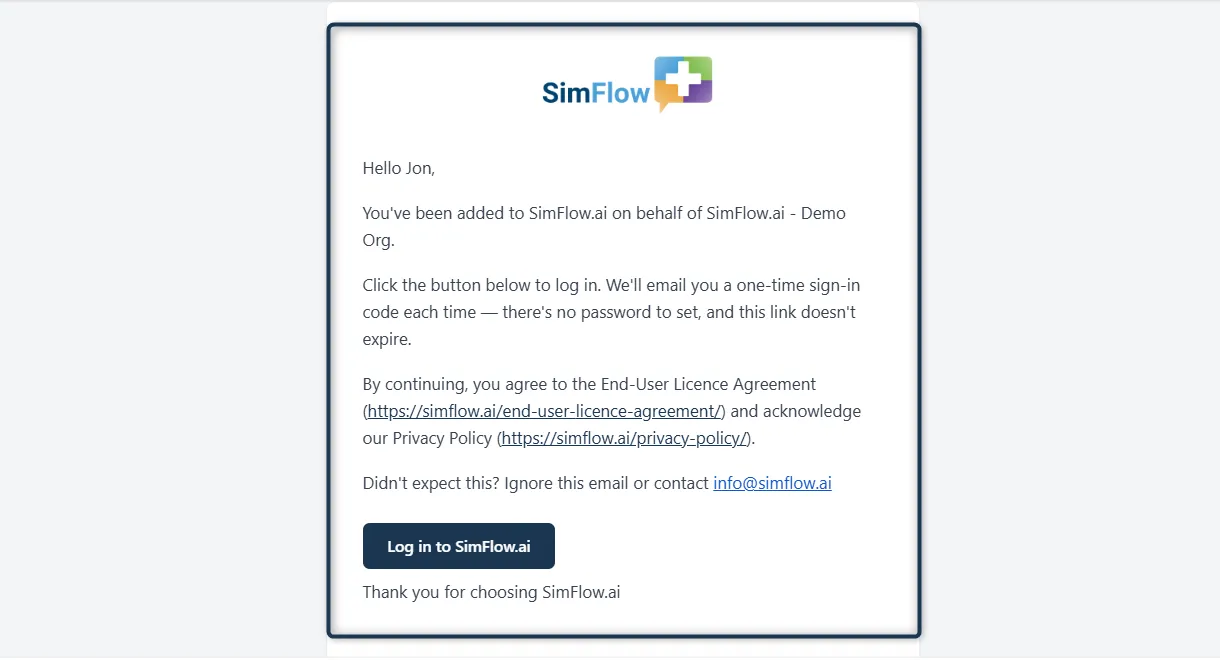
Your account administrator will trigger an email to your inbox from info@SimFlow. The email includes a Log in to SimFlow button that you can use to access your account.
You'll see something like:
- A message confirming that you've been added to your organisation's SimFlow account.
- A Log in to SimFlow button.
- A note explaining that you'll receive a one-time sign-in code each time you log in.
- A note that there's no password to set and the login link doesn't expire.
Log In to SimFlow
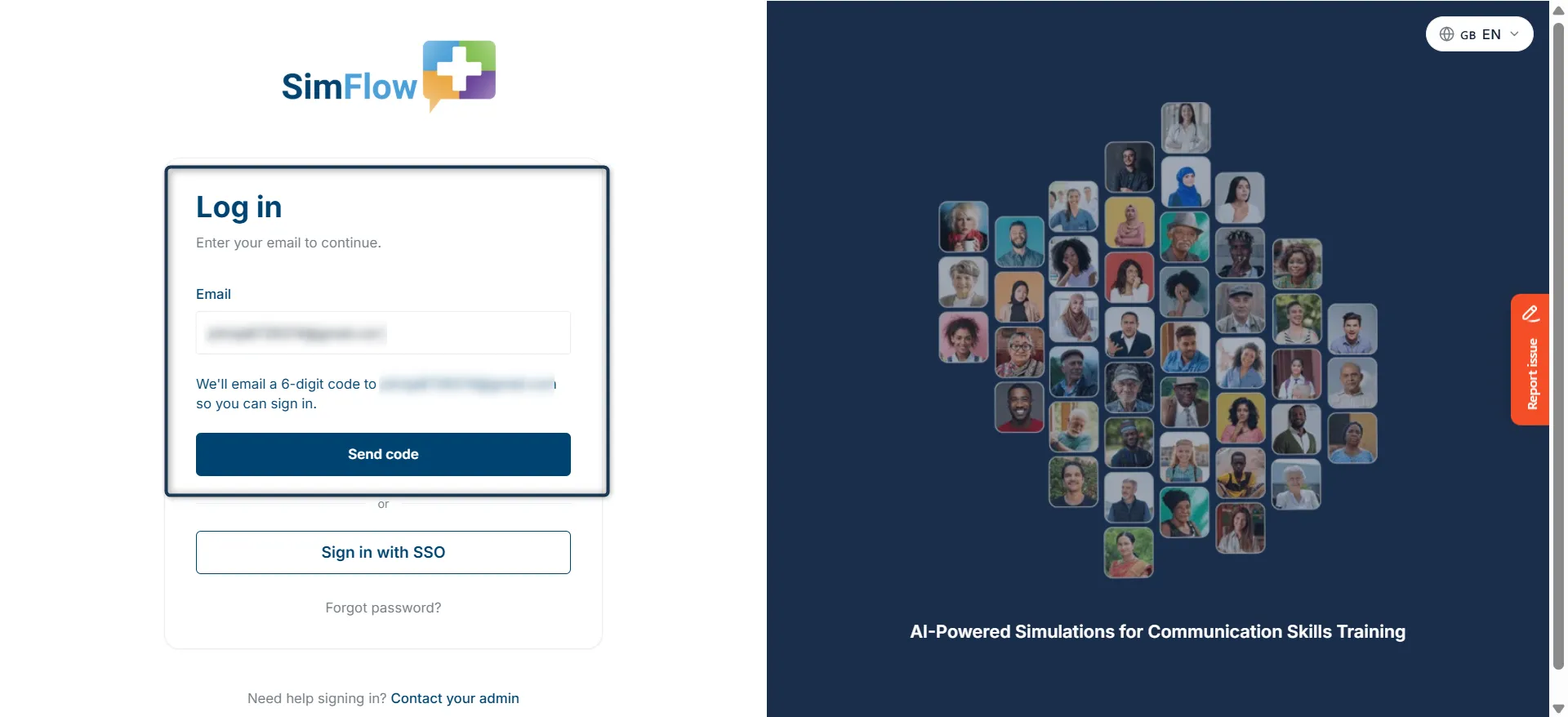
- Go to the SimFlow login page.
- Enter the email address associated with your SimFlow account.
- Click Send code.
Enter Your Sign-In Code
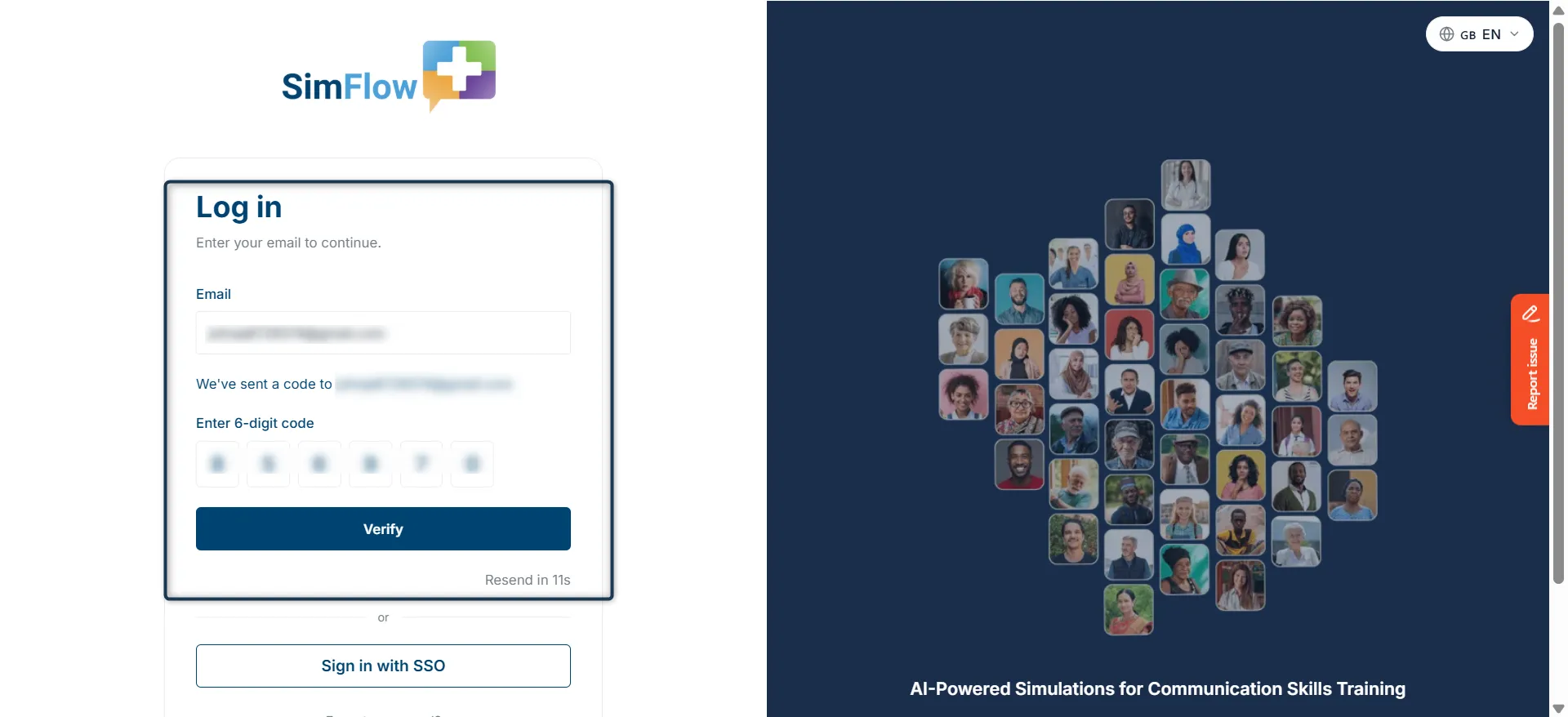
SimFlow sends a 6-digit sign-in code to your email address.
- Open the email containing Your sign-in code.
- Enter the 6-digit code on the SimFlow login screen.
- Click Verify.
The sign-in code expires in 1 hour.
Set Your Password
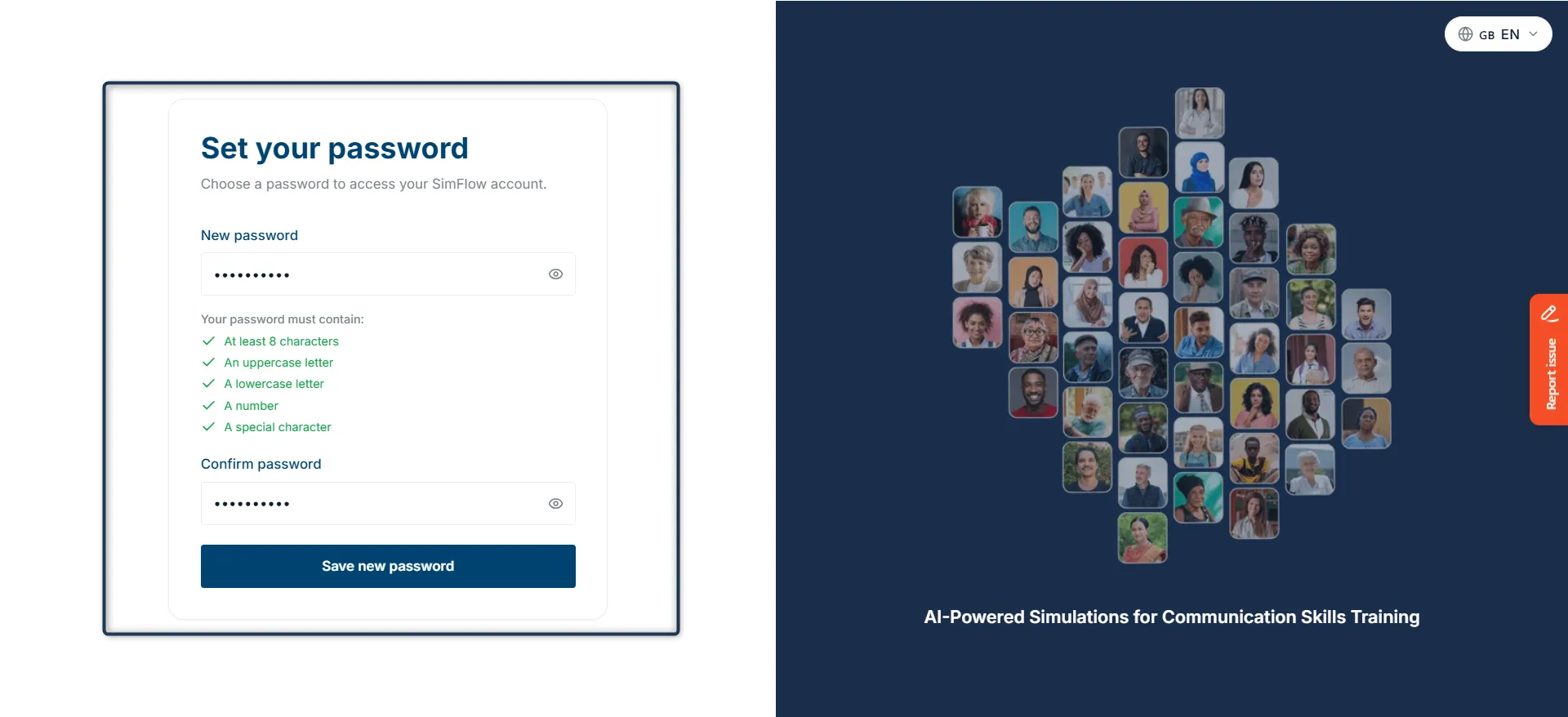
After verifying your sign-in code, you may be prompted to create a password for your SimFlow account.
- Enter a password in New password.
- Confirm the password in Confirm password.
- Make sure your password meets the requirements shown on screen.
- Click Save new password.
Note: Your password must contain at least 8 characters, an uppercase letter, a lowercase letter, a number, and a special character.
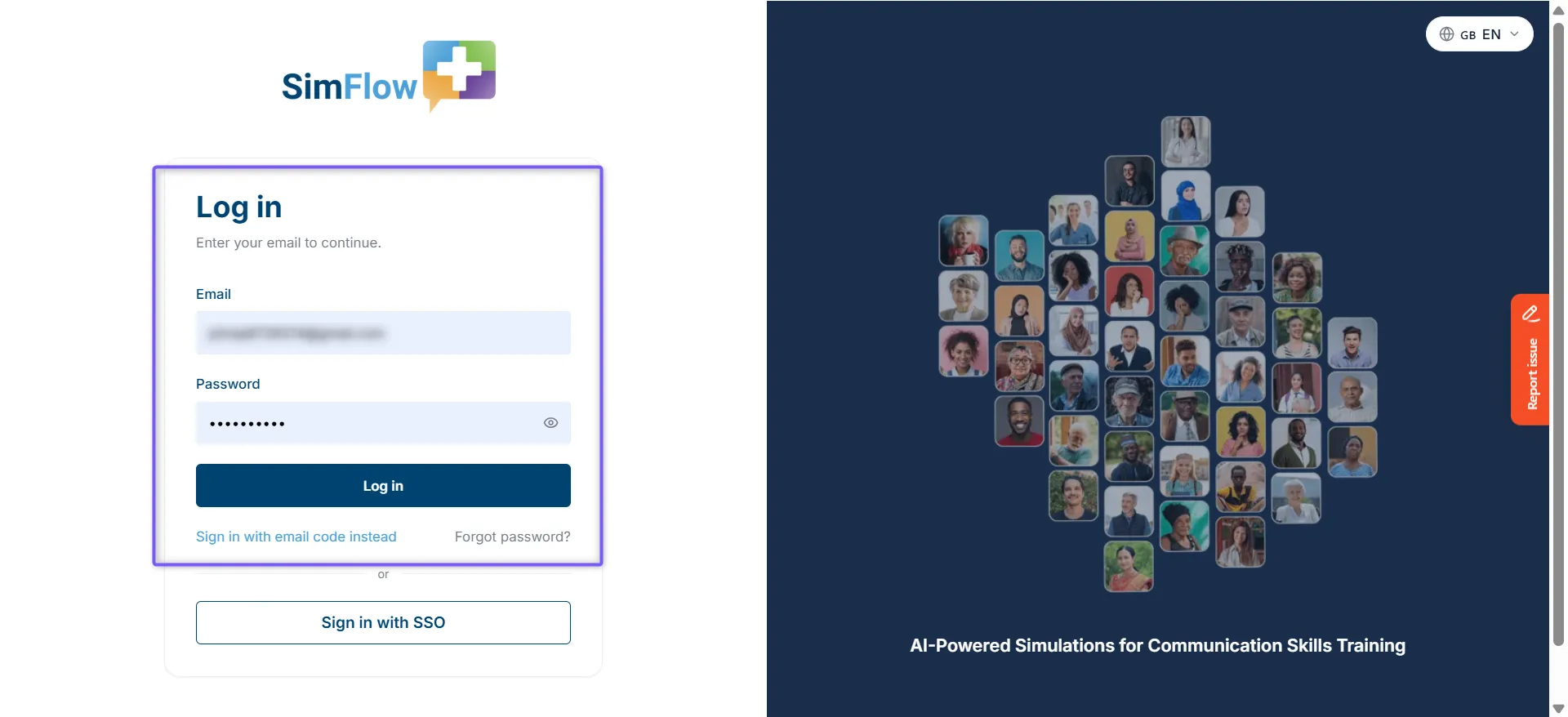
Once your password is saved, you can sign in to SimFlow in future using your email address and password, or choose to sign in with a one-time sign-in code sent to your email.
Reset Your Password
If you can't remember your password, you can reset it from the SimFlow login page
- Click Forgot password?.
- Enter the email address associated with your SimFlow account.
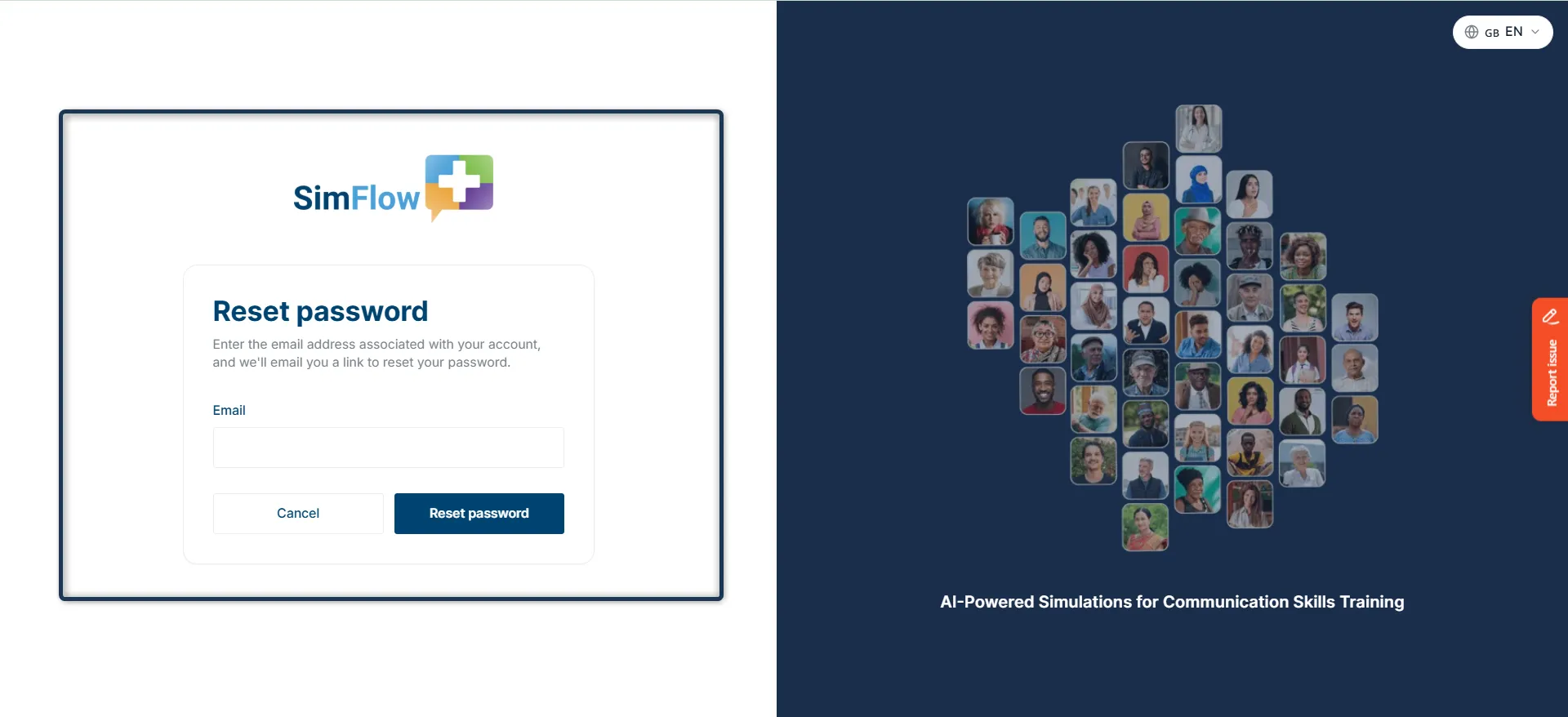
- Check your email for the Reset your password message.
- Click Reset my password.
- Create and confirm your new password.
- Click Save new password.
- Return to the login page and sign in with your email address and new password.
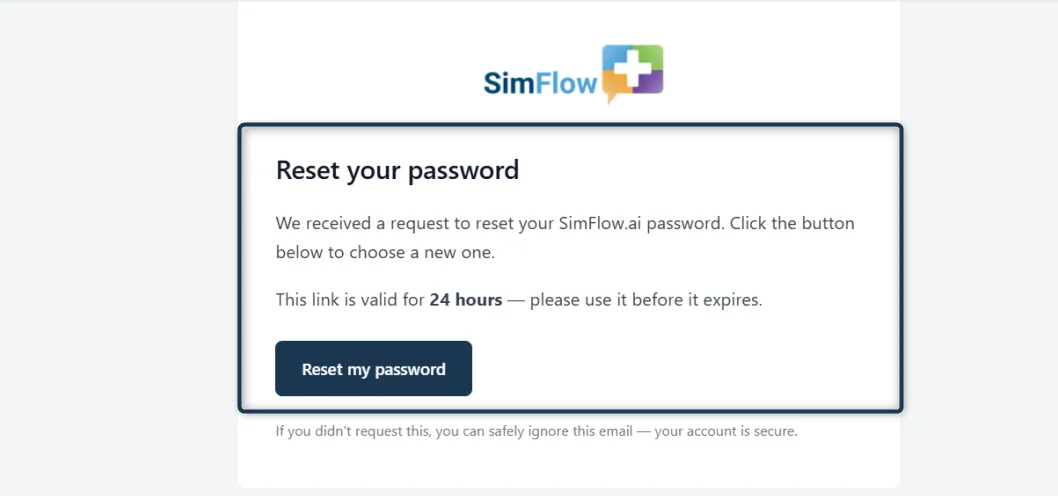
Note: The password-reset link is valid for 24 hours. If the link expires, request a new password-reset email from the login page.
Sign In With SSO
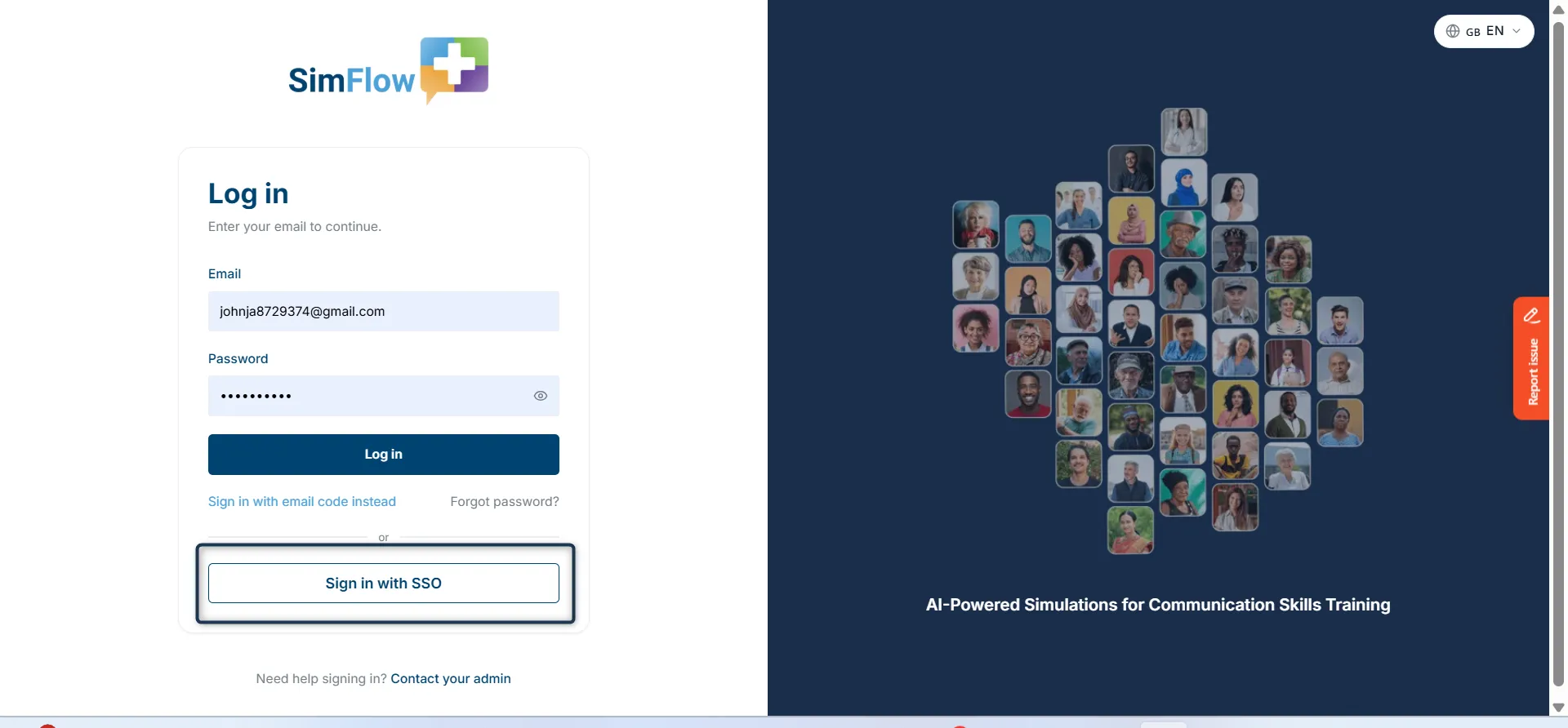
If your organisation uses single sign-on, select Sign in with SSO and follow your organisation's sign-in process.
If you didn't receive the email
If you can't find the account email:
- Check your Spam or Junk folder and search for SimFlow.
- Confirm you're checking the email address your administrator used.
- If it still hasn't arrived, contact your account administrator to resend the invite.
Security note: If you receive a password email you weren't expecting, do not click the link - you can safely ignore it. If you're unsure, contact your organisation's SimFlow administrator.
Set up your microphone
SimFlow simulations use voice, so your browser needs permission to access your microphone.
When you open SimFlow and start a simulation, your browser will automatically prompt you to allow microphone access. Select Allow to enable your microphone for the simulation.
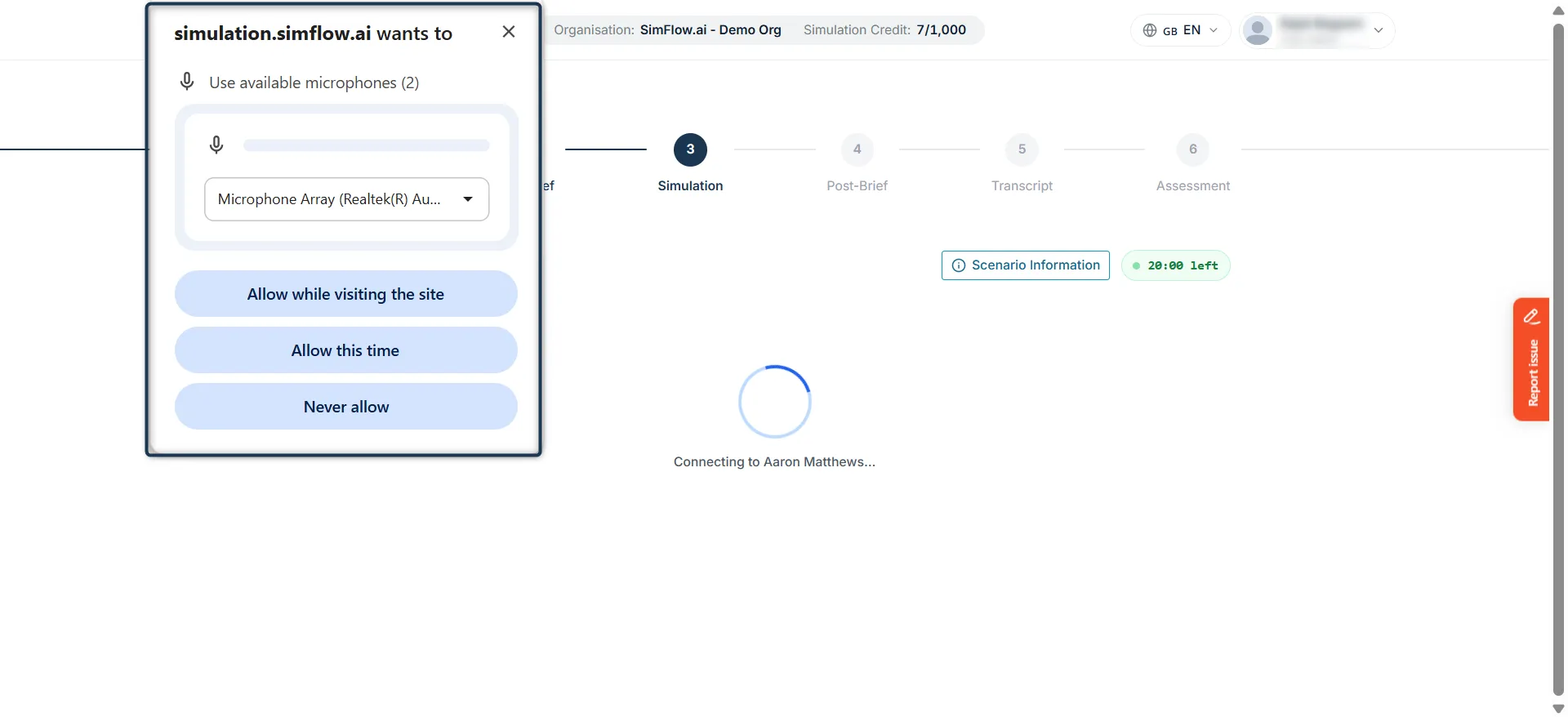
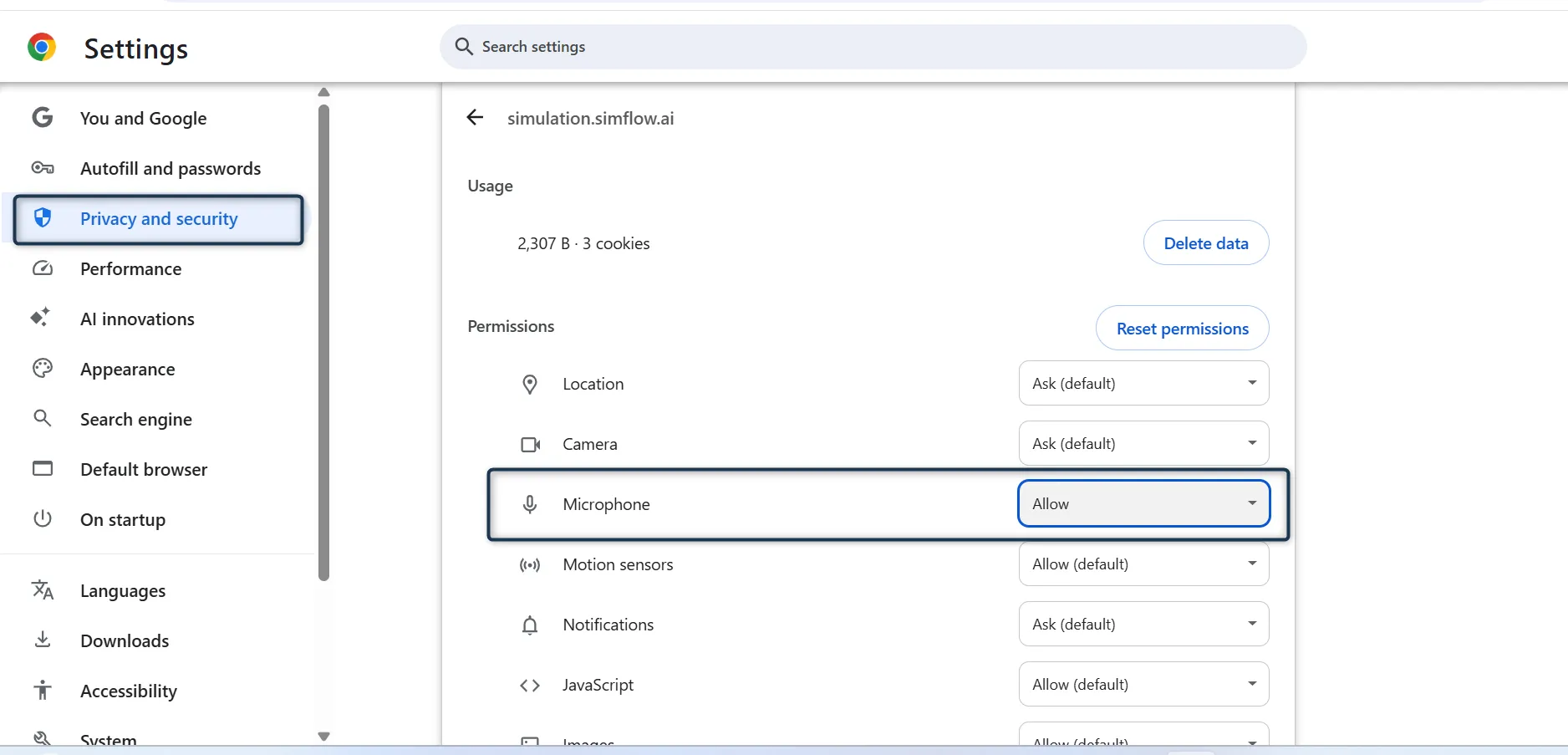
If you don't see the prompt or previously blocked microphone access, enable microphone permission for simulation.SimFlow in your browser settings.
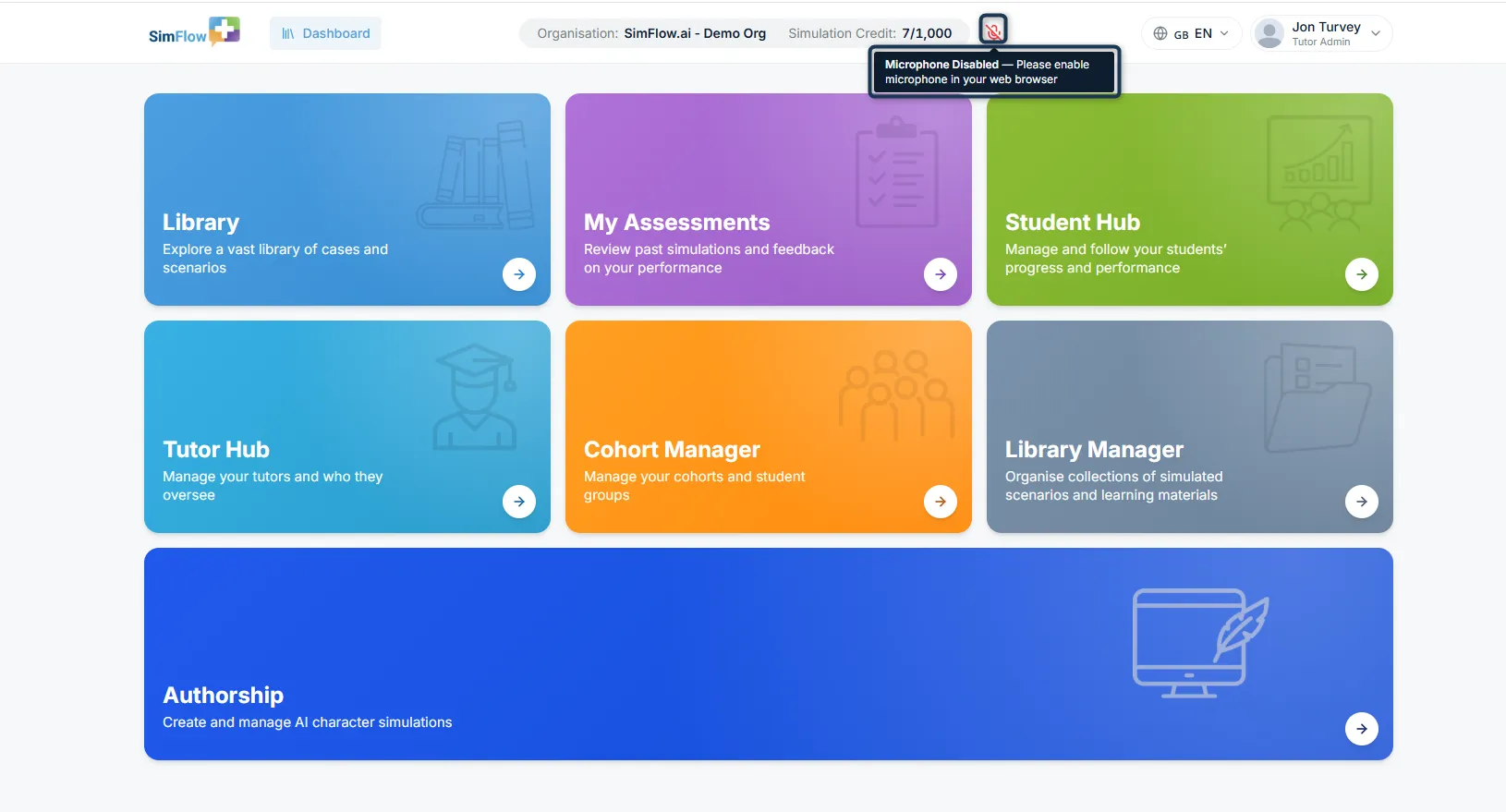
If microphone access is disabled, SimFlow will display a Microphone disabled alert prompting you to enable access.
After enabling microphone access, return to SimFlow and refresh the page if required.
Tip: A headset is recommended for the best experience during simulations and to help reduce background noise or echo.
Explore Your Dashboard
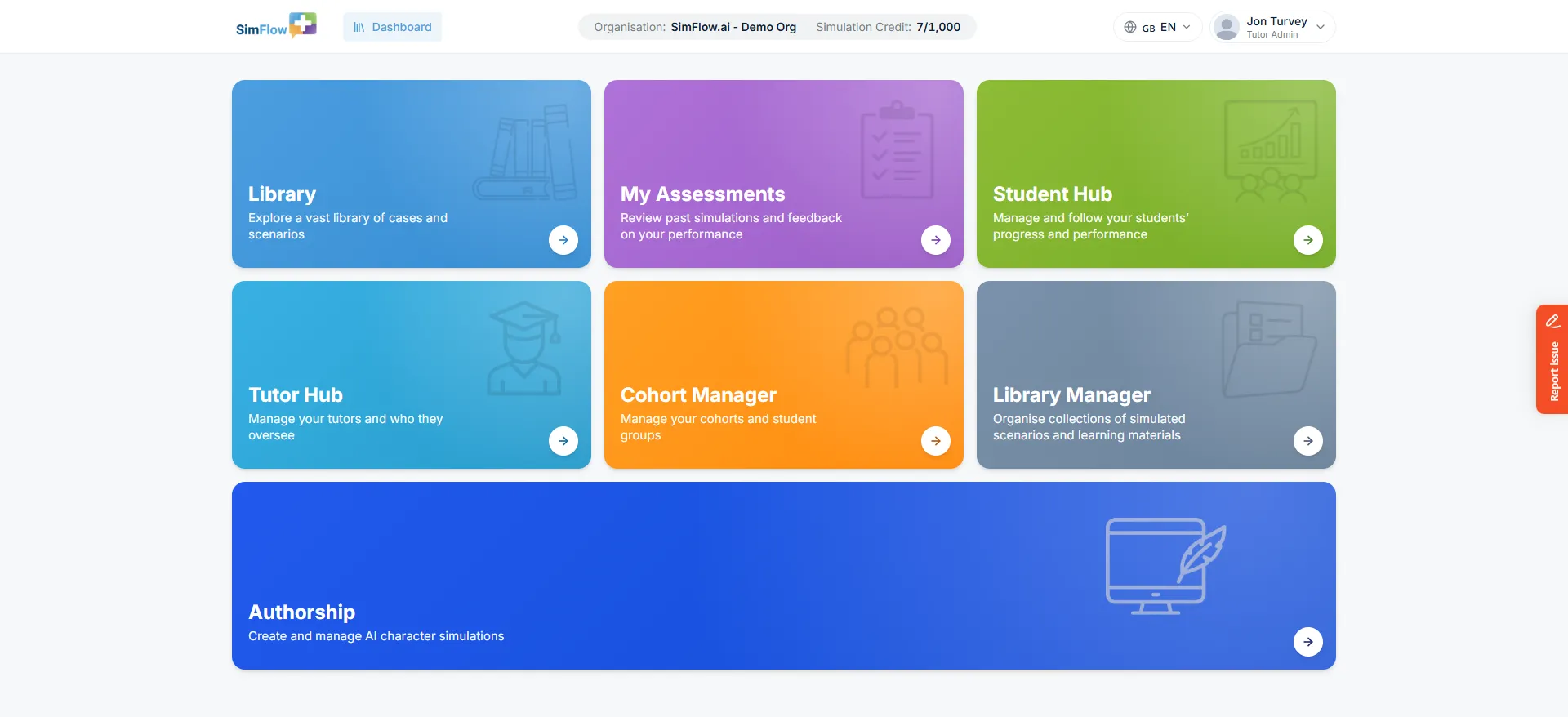
Once you're logged in, take a moment to familiarise yourself with the Dashboard. This is your starting point for accessing the main areas of SimFlow.
📌 Learn more: For a detailed breakdown of each Dashboard tile, see Dashboard WalkthroughDashboard Walkthrough.
Tutor Admin vs Tutor
SimFlow supports two tutor roles: Tutor and Tutor Admin. Both roles can access core learning and simulation tools, while Tutor Admins have additional organisation-level access.
📌 Learn more: about the differences between Tutor and Tutor Admin, including their access and permissions, in Tutor Admins & TutorsTutor Admin vs Tutors.
Set up your SimFlow environment
Once you're familiar with your Dashboard and role, set up the learners, cohorts, libraries, and simulation content needed for your training workflow.
Setup flow | What you can do | Reference |
|---|---|---|
Create & Manage Tutors | Tutor Admins can add and manage tutors across the organisation. | Add Tutor Admin & TutorsSee More |
Create & Manage Cohorts | Create and manage cohorts, then assign the relevant library to each cohort. | Create a CohortSee More |
Add & Manage Students | Add students individually or in bulk, then manage the students assigned to your cohorts. | Add StudentsSee More |
Create & Manage Libraries | Create and organise custom libraries containing the simulations you want learners to access. | Create a Custom LibrarySee More |
Create Simulation Content | Use Authorship to create and configure simulations, including the AI character, scenario, assessment, and supporting content. | Authorship OverviewSee More |
Assign Learning Content | Assign the appropriate library to a cohort so students can access the simulations available to them. | Add Simulations to LibrarySee More |
Start a Simulation
Once you're ready, you can access and run simulations from the available Library.
The basic simulation flow is:
Choose a case → Pre-Reading → Pre-Brief → Scenario & Task → Choose a simulation mode → Start the simulation → Post Simulation → Assessment
📌 To learn how to perform a simulation, check the Simulation OverviewSimulation Overview documentation to understand the complete simulation workflow and get started.
Review Assessments and Feedback
After completing a simulation, Tutors, Tutor Admins, and Students can review their own simulation results and feedback. Tutors and Tutor Admins can also review student assessments to track learner performance.
Function | Description | Reference |
|---|---|---|
Review Your Assessment | Review your own simulation results, assessment, and feedback after completing a simulation. | View Your AssessmentsSee More |
View Student Assessments | Tutors and Tutor Admins can find and review completed student assessments and their results. | View Student AssessmentsSee More |
Need Help?
If you run into an issue while using SimFlow, use the troubleshooting resources below to find a solution.
Resource | Description | Reference |
|---|---|---|
Troubleshooting | Find solutions to common login, access, microphone, audio, network, and simulation issues. | TroubleshootingSee More |
FAQ | Find answers to frequently asked questions about using the SimFlow platform. | FAQSee More |
If you cannot resolve a platform or account issue using these resources, contact SimFlow Support at info@SimFlow.
You can also report an issue or share feedback directly from the SimFlow app.