View Student Assessments
Once a student completes a simulation, you need a way to see how they performed, review their conversation, and understand their feedback. View Student Assessments lets you find a student's assessment history and explore a specific result in detail.
Use it to check whether a student has completed their assigned work, review their performance before a supervision meeting, or revisit a simulation transcript to understand how a conversation went.
Info: This is the tutor-facing view of a student's results. Students can review their own completed simulations, reports, transcripts, and recordings at any time via My Assessments.
Let’s get started 🚀
Find a Student's Assessments
When you need to review a student’s completed simulations and assessment results, find the student you want to review, then use the Actions menu to select View Assessments and open their assessment history.
Note: If a student hasn't completed any assessments yet, their assessment history will be empty. Once they complete a simulation, it will appear here.
Use the interactive walkthrough below to see how to find and open a student’s assessments.
Assessment Statuses
The Status column shows the current stage of each assessment.
Status | What it means |
|---|---|
Draft | The simulation has been started but the conversation has not yet been completed. |
Awaiting Submission | The conversation has been completed, but the remaining steps have not yet been finished and submitted. The assessment has not been generated yet. |
Completed | The simulation and required submission steps are complete, and the assessment report is available to review. |
Review a Student’s Assessments
Once you've opened the student's assessment history, review the list to find an assessment with a Completed status. Select it to explore the full report, including the student's performance, personalised feedback, and transcript.
Note: Not every simulation follows the same steps. Some include an extra Documentation stage, where the student writes up the consultation themselves before the assessment is generated.
Standard Scenario
A standard simulation follows the usual 6-stage workflow: the student prepares, completes the interaction, reviews the session, and receives their assessment.
Pre-Reading → Pre-Brief → Simulation → Post-Brief → Transcript → Assessment
Use the interactive walkthrough below to see how to review a student's assessment.
Scenario with Documentation Task
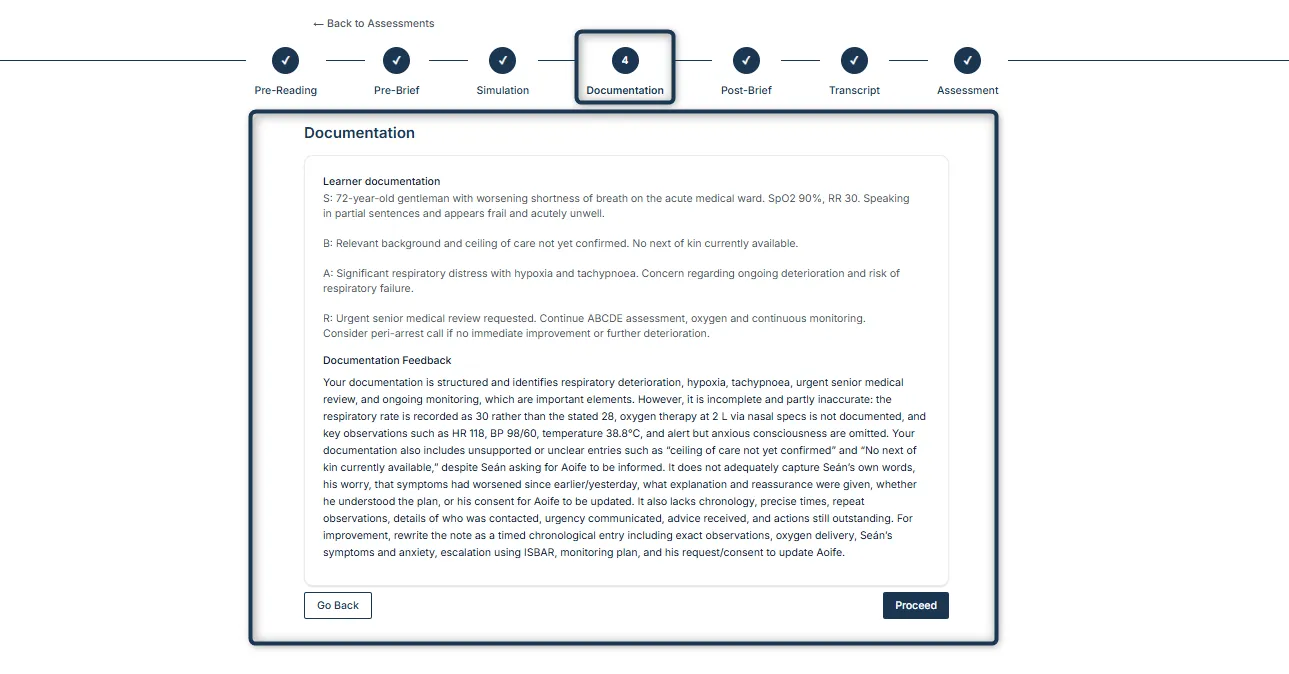
Some simulations include an additional Documentation stage. When you open a completed assessment, you can review the documentation the student submitted and the feedback provided on it.
Note: The Documentation stage only appears in simulations that include a Documentation Task. It is not included in every simulation.
When a Documentation Task is included, the simulation has 7 key stages:
Pre-Reading → Pre-Brief → Simulation → Documentation → Post-Brief → Transcript → Assessment
Documentation
The Documentation stage shows the student's submitted documentation along with Documentation Feedback. Review this section to understand what the student documented well and where their documentation could be improved.
Assessment
The Assessment stage shows the student's overall performance and personalised feedback. When the simulation includes a Documentation Task, Documentation Feedback is also included in the assessment.
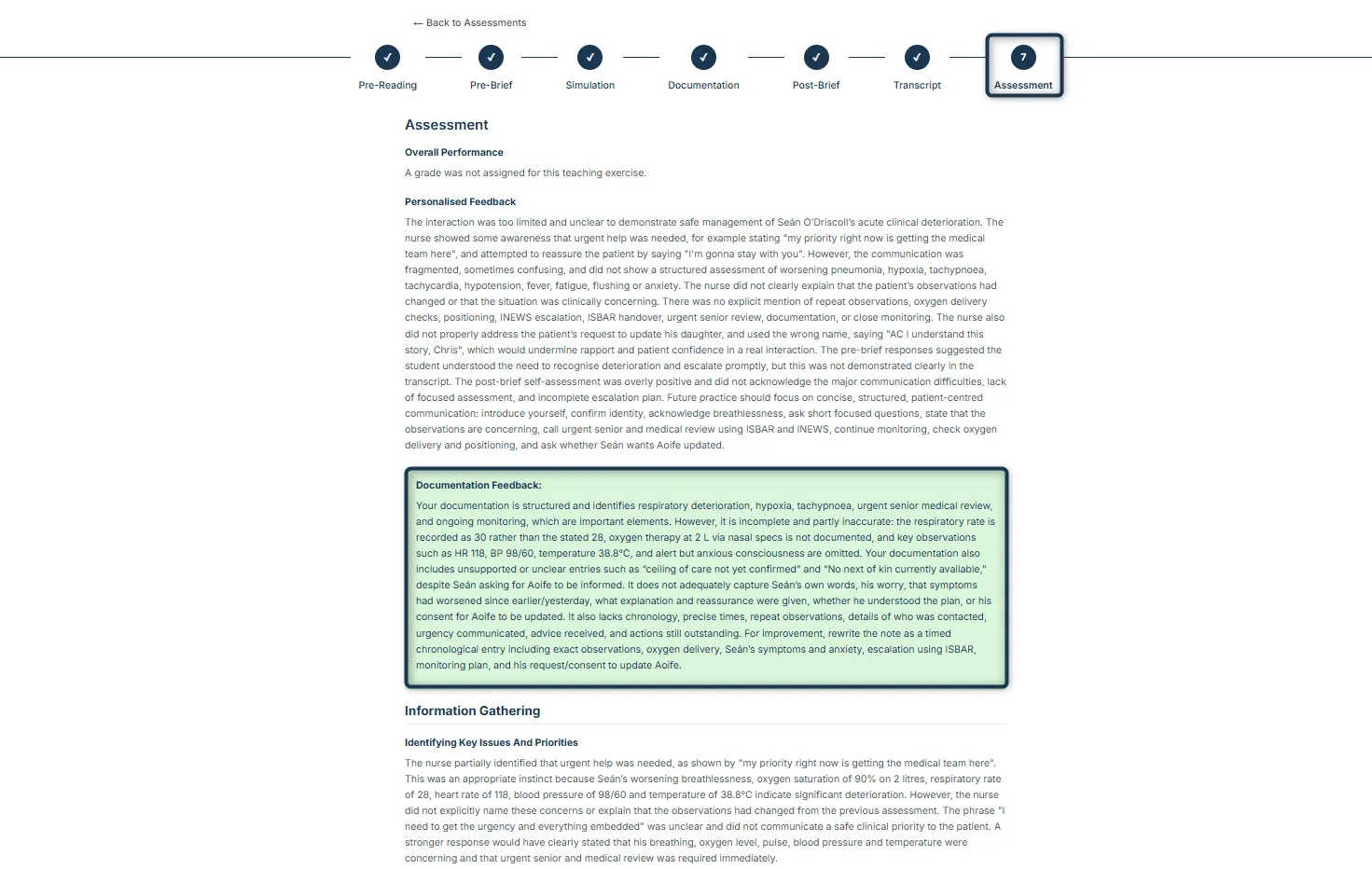
As a tutor, you can review this documentation feedback in the student's completed assessment to understand how effectively they documented the interaction.