Authorship Overview
The Authorship section in SimFlow provides the workspace for creating, configuring, testing, publishing, and managing simulations. A simulation can be created from scratch or based on an existing simulation, then configured with its scenario, AI character, conversation behaviour, supporting information, and assessment criteria before it is published for learners.
The authorship workflow consists of several stages, from initial simulation setup through publication and ongoing management.
Let’s get started 🚀
Authorship Workflow
The complete authorship process includes the following stages:
1. Create a New Simulation
Create a new simulation from scratch or start with an existing simulation as a template. When an existing simulation is duplicated, SimFlow creates a separate Draft copy that can be customized without affecting the original.
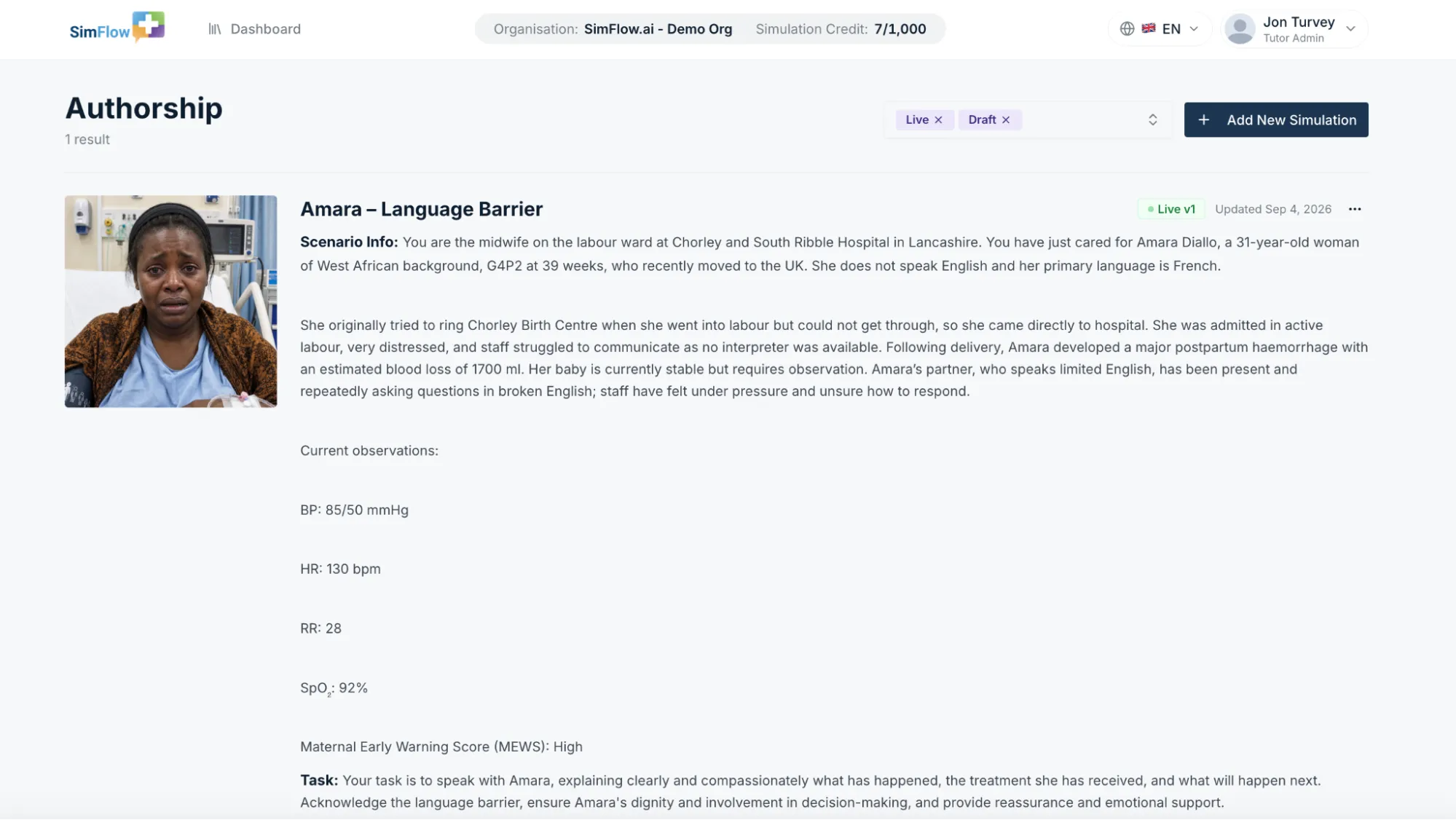
For more information, please refer to Create a New SimulationCreate a New Simulation.
Note: Creating a simulation does not make it available to learners. The simulation remains in Draft status until it is published.
2. Build Simulation
Configure the simulation’s core content and AI character behaviour. This stage defines what learners will see, how the AI character is presented, and how the conversation behaves during the simulation.
The Build Simulation stage includes:
- Configure Simulation Identity : Define the simulation title, character details, and other identity information.
- Configure the Scenario : Add the scenario context, task description, and optional Documentation Task.
- Add Additional Information : Add supporting resources such as images, audio, video, PDFs, and embedded content.
- Configure Internal Character Details : Define internal information that guides the AI character, including the presenting complaint and character synopsis.
- Configure Character Appearance : Generate or upload the character image.
- Configure Voice and Audio : Select the character’s voice and optional ambient background audio.
- Configure Simulation Settings : Configure how the conversation starts and set the character’s response length.
- Generate and Test the Simulation : Generate the AI character and test the simulation before moving to assessment.
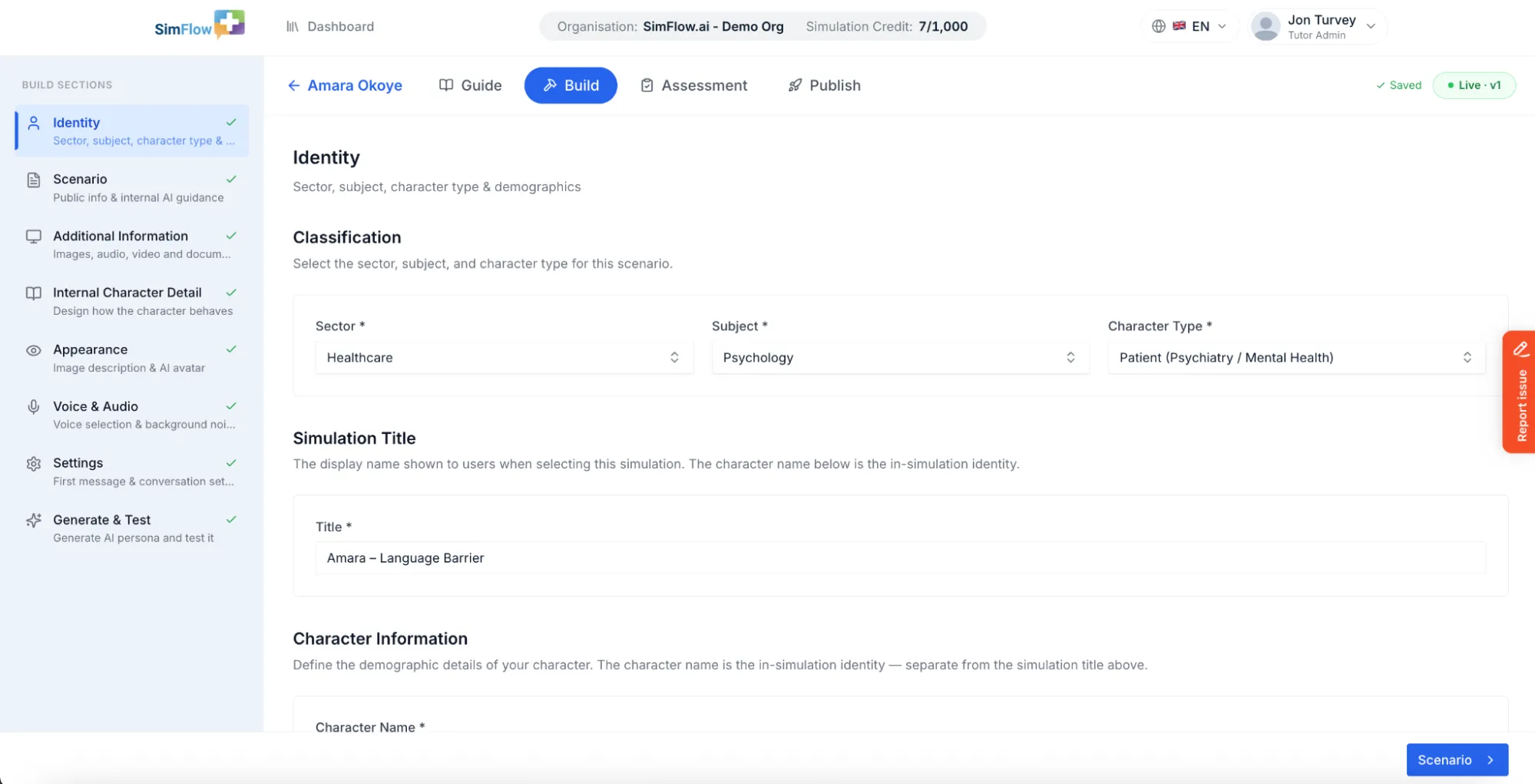
For more information, please refer to Build SimulationBuild Simulation.
Info: The information configured in the Build stage determines how the AI character behaves and how the simulation is presented to learners.
3. Configure Assessment
Define how learner performance will be evaluated. Assessment configuration can include an overall performance grade, scoring criteria, qualitative feedback requirements, and Documentation Feedback when the simulation includes a Documentation Task.
The assessment can also be generated and tested using saved simulation conversations before publication.
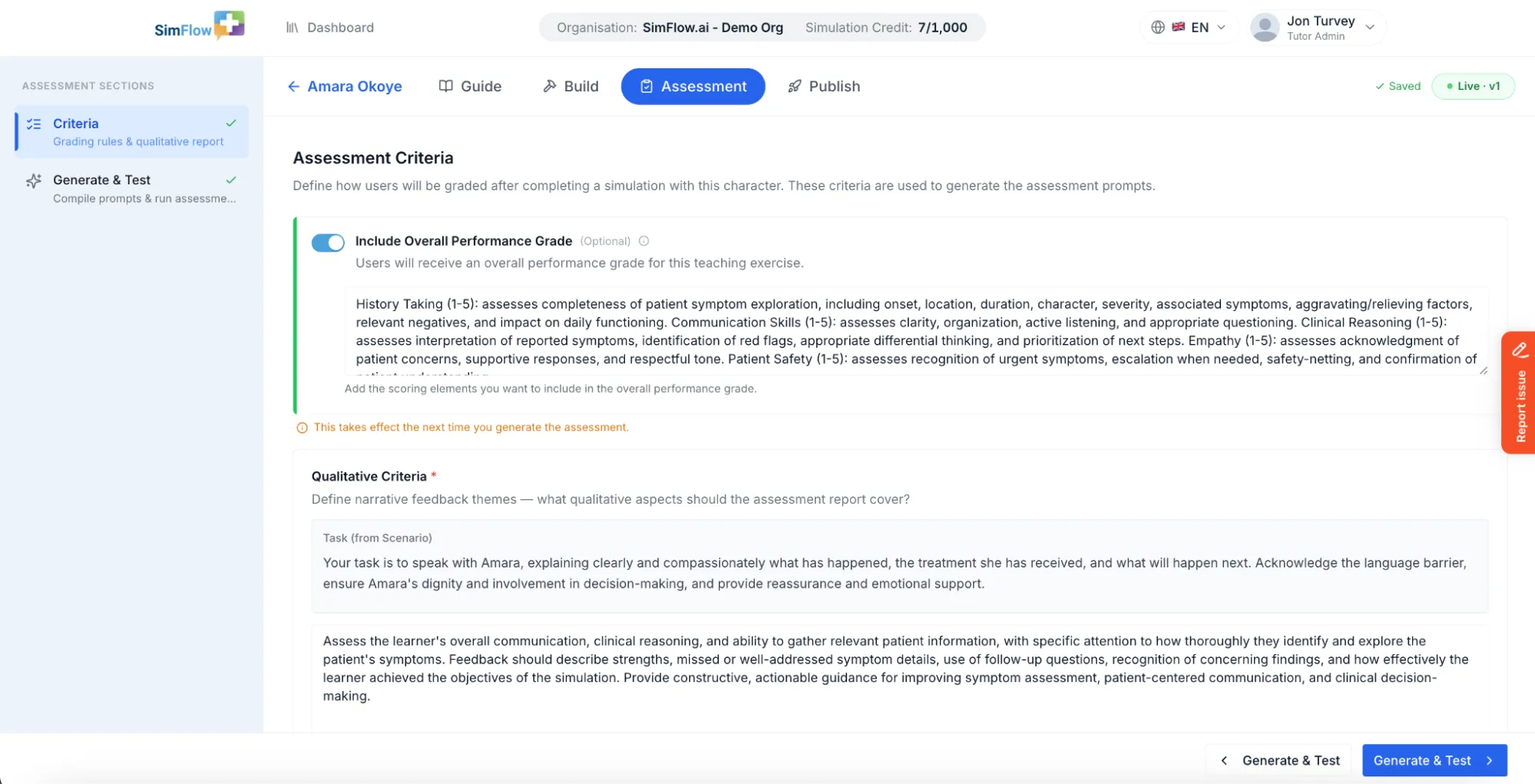
For more information, please refer to Configure AssessmentConfigure Assessment.
4. Publish Simulation
Prepare the completed simulation for publication. This stage includes adding Pre-Reading materials, configuring Filter Tags, assigning the simulation to a library, reviewing Version History, and completing the final review before publishing.
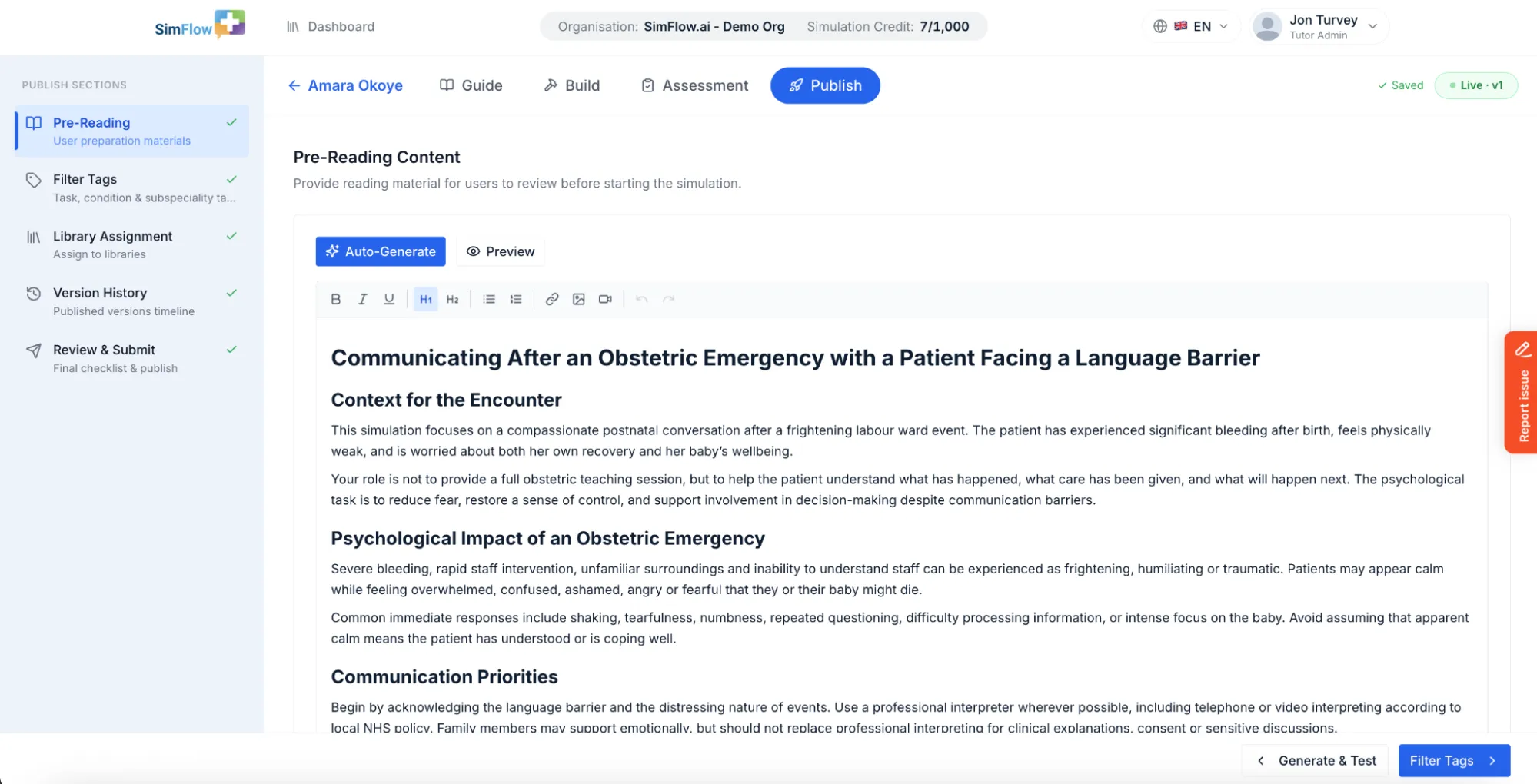
Once published, the simulation appears in the assigned organisation library. A live simulation can also be submitted to the Open Library for review or kept private within the organisation.
Info: Submitting a simulation to the Open Library sends it to SimFlow for review. Keeping the simulation private makes it available only within your organisation.
For more information, please refer to Publish SimulationPublish Simulation.
Manage Simulations
After simulations have been created, they can be managed from the Authorship page. You can open simulations to review or update their configuration, duplicate simulations to create new drafts, archive simulations that are no longer active, restore archived simulations, or delete simulations that are no longer required.
Simulation Status
Simulations can have different statuses in the Authorship page:
Status | Description |
|---|---|
Draft | The simulation is still being configured or has not yet been published. |
Live | The simulation has been published and appears in its assigned organisation library. |
Archived | The simulation has been archived and is no longer shown in the active simulations list. |
A simulation’s status helps identify where it is in the authorship and publication lifecycle and can also be used to filter simulations on the Authorship page.