Dashboard Walkthrough
Everything you need as a student sits on one simple screen. Unlike a Tutor or Tutor Admin, who manage cohorts, libraries, and other people's progress, your Dashboard is built around just two things: finding a simulation to practise, and reviewing how you've done on the ones you've already completed.
Note: This guide covers the Student view specifically. If you're a Tutor or Tutor Admin, see Dashboard WalkthroughDashboard Walkthrough instead - your Dashboard includes several additional tools for managing learners, cohorts, and content.
Let’s get started 🚀
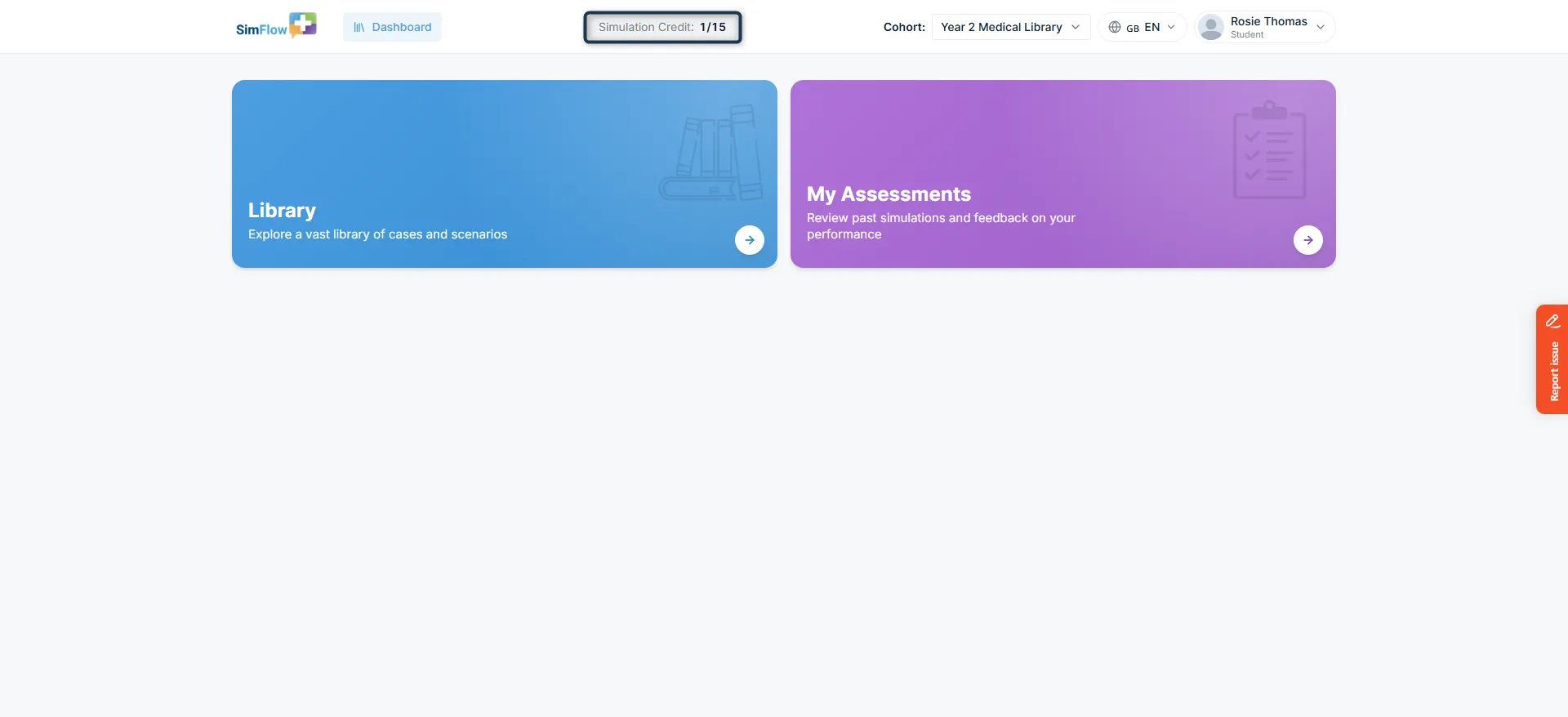
Simulation Credits
Simulation Credits shows how many simulation credits are available for you to use. For example, 1/15 indicates your current credit count against the total available credits. Each simulation uses a credit when you start it, so check this before beginning a simulation to know whether you have credits available.
Learn more: Simulation CreditsSimulation Credits
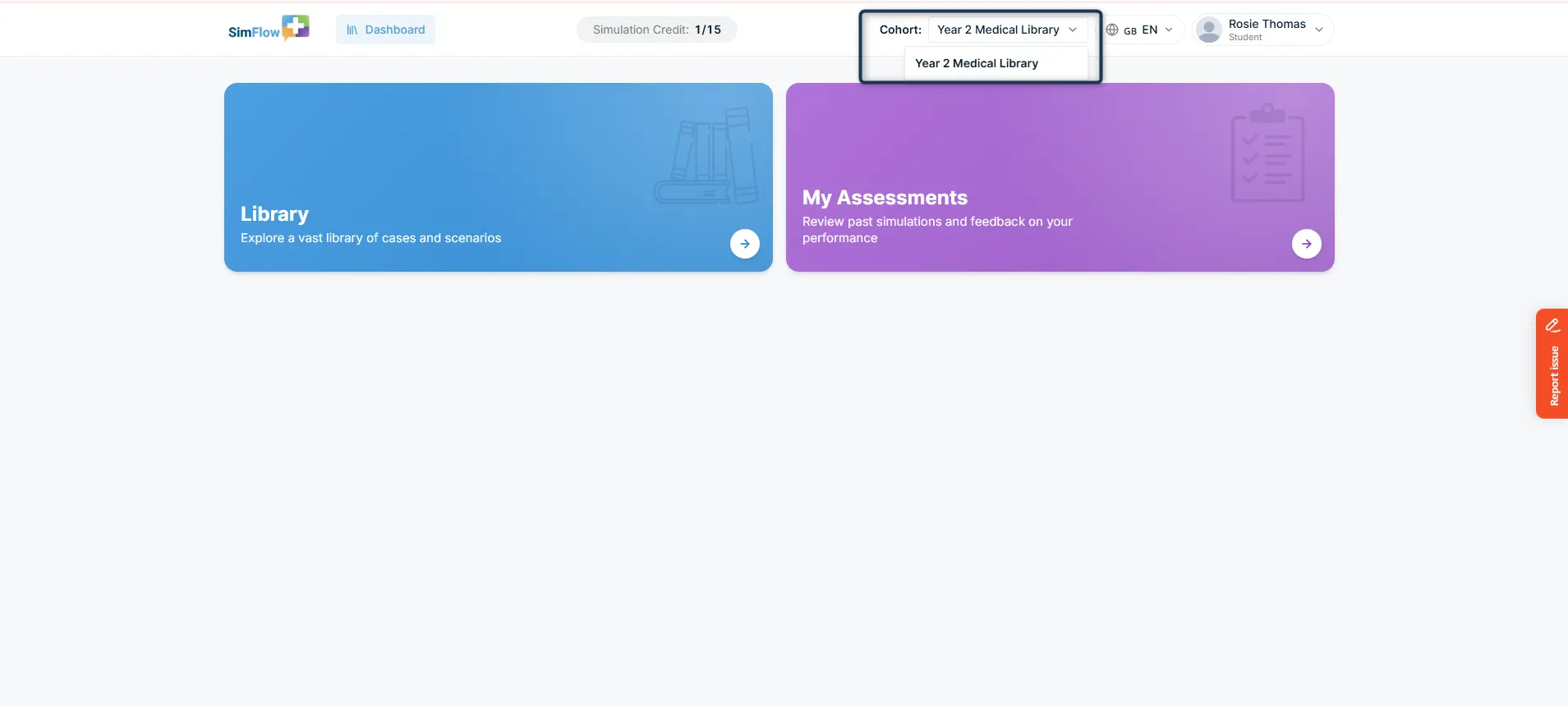
Cohort
Choose the Cohort you are currently working in, such as Year 2 Medical Library. Your selected cohort determines which simulations and learning content are aailable to you. If you belong to more than one cohort, open the Cohort menu and select another cohort to access its assigned content.
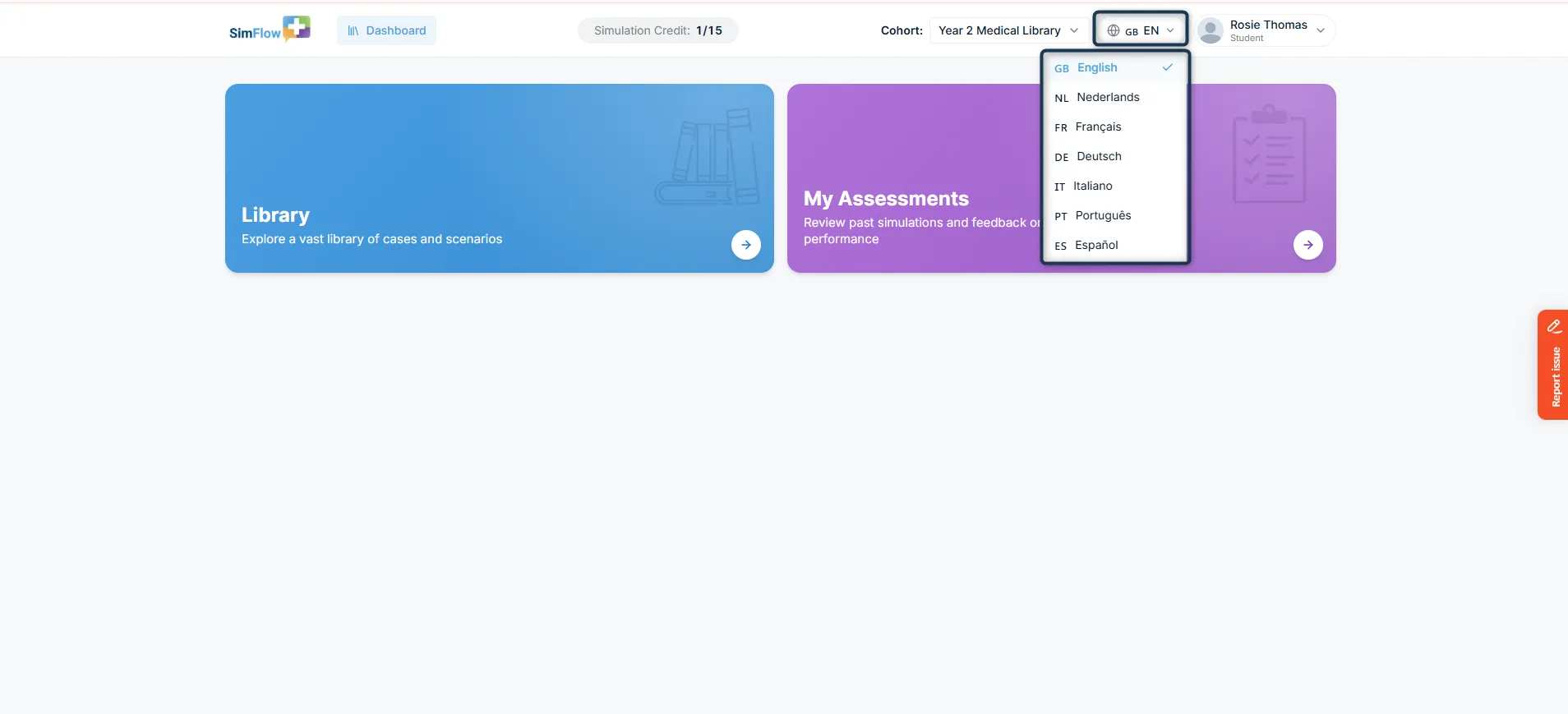
Language
Choose the language used across the SimFlow interface and simulations from the Language menu. Select the language selector to view the available options, then choose your preferred language. Choosing the appropriate language ensures that you can navigate SimFlow and perform simulations in the language you are most comfortable using.
Info: Available languages include English (GB), Nederlands (NL), Français (FR), Deutsch (DE), Italiano (IT), Português (PT), and Español (ES).
Profile
The Profile menu shows the account you’re currently signed in with and your role, such as Student. Select the profile menu to view your account, open Settings, or log out. Selecting Settings opens the Account Settings page, where you can manage your Profile, Account, and Credits from one place.
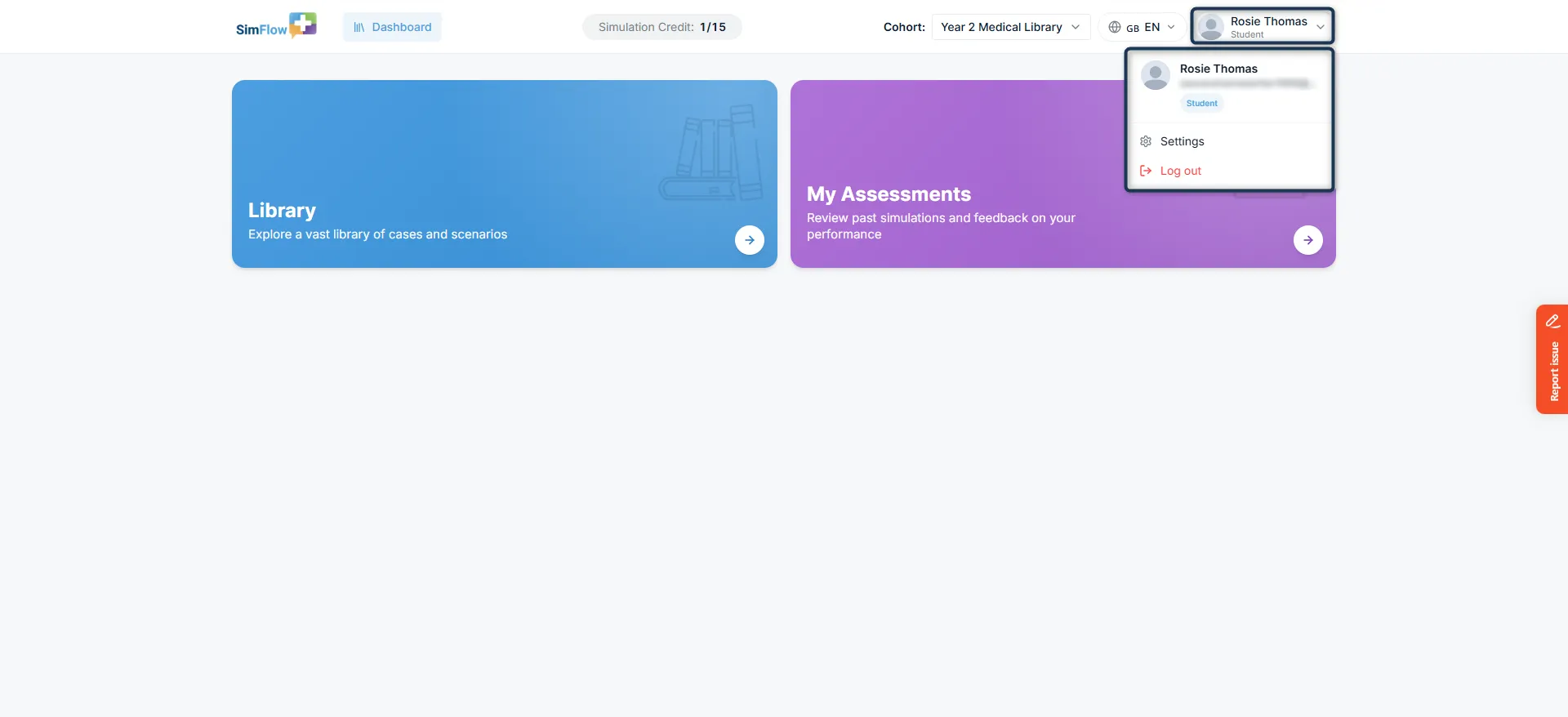
Dashboard Tiles
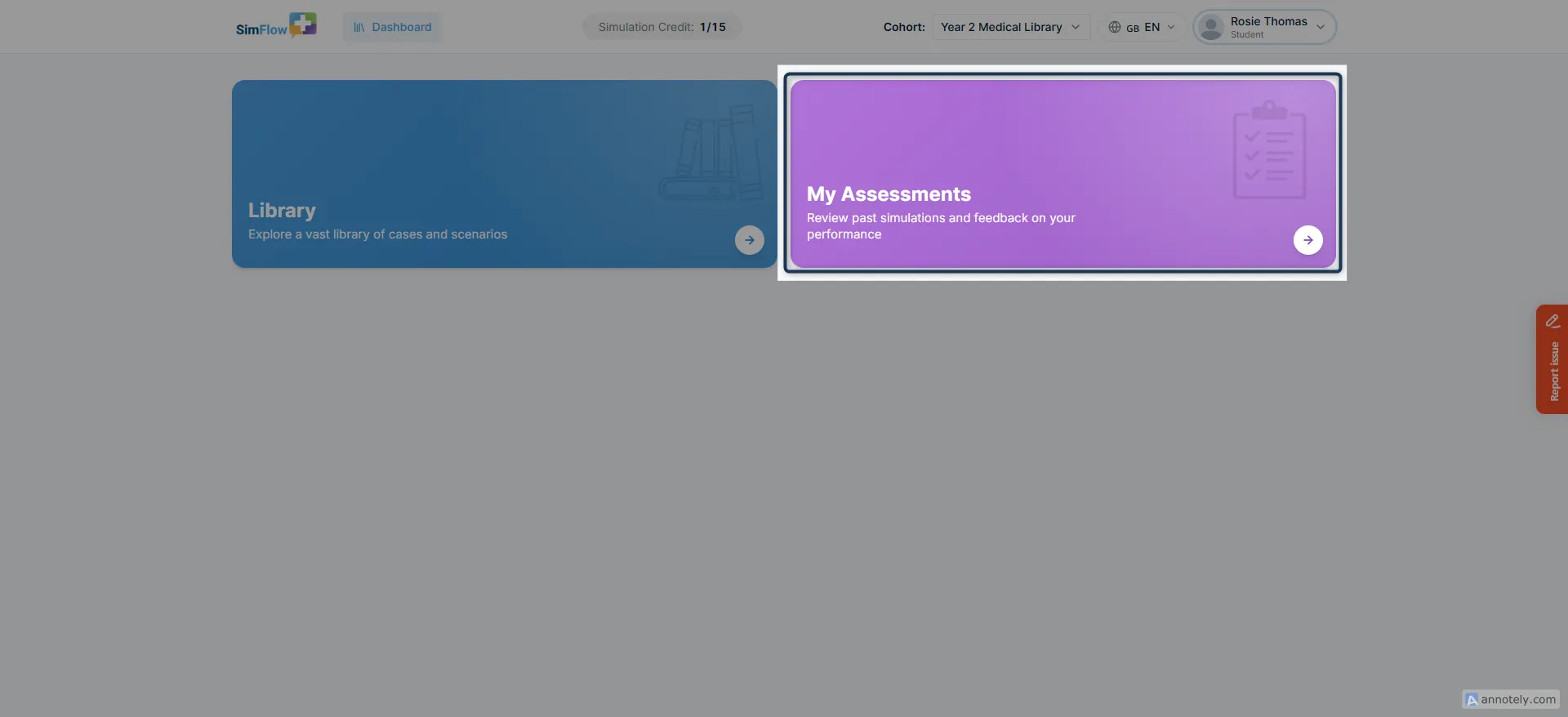
The main Dashboard is organised into tiles, with each tile taking you to a specific area of SimFlow. The tiles available to you as a student include Library and My Assessments.
📚 Library
Looking for a simulation to practise? The Library brings the cases and scenarios available to you together in one place. Browse the available simulations, review the scenario details, and choose one to start when you’re ready.
Learn more: Start a SimulationStart a Simulation
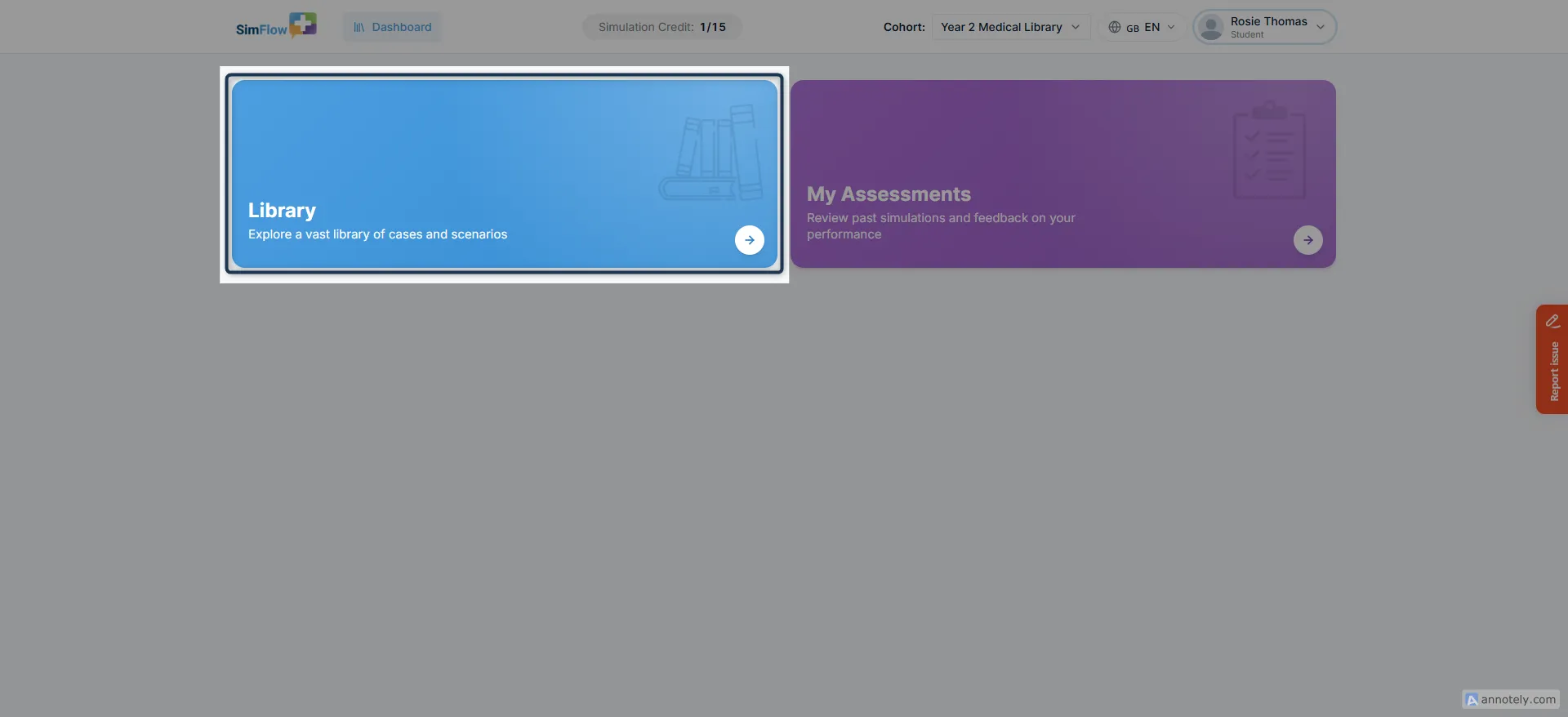
📋 My Assessments
Want to review how your simulations went? My Assessments brings your completed simulations, results, and assessment feedback together in one place. Use it to revisit a completed simulation, review your performance, and reflect on the feedback provided.
Learn more: View Your AssessmentsView Your Assessments