View Your Assessments
Need to complete a simulation first? Check out Start a SimulationStart a Simulation for a step-by-step guide.
Once you complete a simulation, you can use My Assessments to review your performance, feedback, and conversation. You can also revisit completed simulations to understand what went well and where you can improve.
Let’s get started 🚀
Open My Assessments
From your dashboard, click My Assessments to view your assessment history. Your assessment list shows the simulations you have started or completed, along with their status, overall performance, and date.
Note: Assessments that are still in progress appear with a Draft status. Once you complete a simulation, its assessment appears with a Completed status.
Use the interactive walkthrough below to see how to open My Assessments.
Assessment Statuses
The Status column shows the current stage of each assessment.
Status | What it means |
|---|---|
Draft | The simulation has been started but the conversation has not yet been completed. |
Awaiting Submission | The conversation has been completed, but the remaining steps have not yet been finished and submitted. The assessment has not been generated yet. |
Completed | The simulation and required submission steps are complete, and the assessment report is available to review. |
Review Your Assessment
Find a simulation with a Completed status and click View to open your assessment. You can review your performance, personalised feedback, and transcript.
Note: Not every simulation follows the same steps. Some include an extra Documentation stage, where you write up the consultation yourself before the assessment is generated.
Standard Scenario
A standard simulation has 6 key stages that guide you from preparing for the simulation through to reviewing your final assessment:
Pre-Reading → Pre-Brief → Simulation → Post-Brief → Transcript → Assessment
Use the interactive walkthrough below to see how to review your completed assessment.
Scenario with Documentation Task
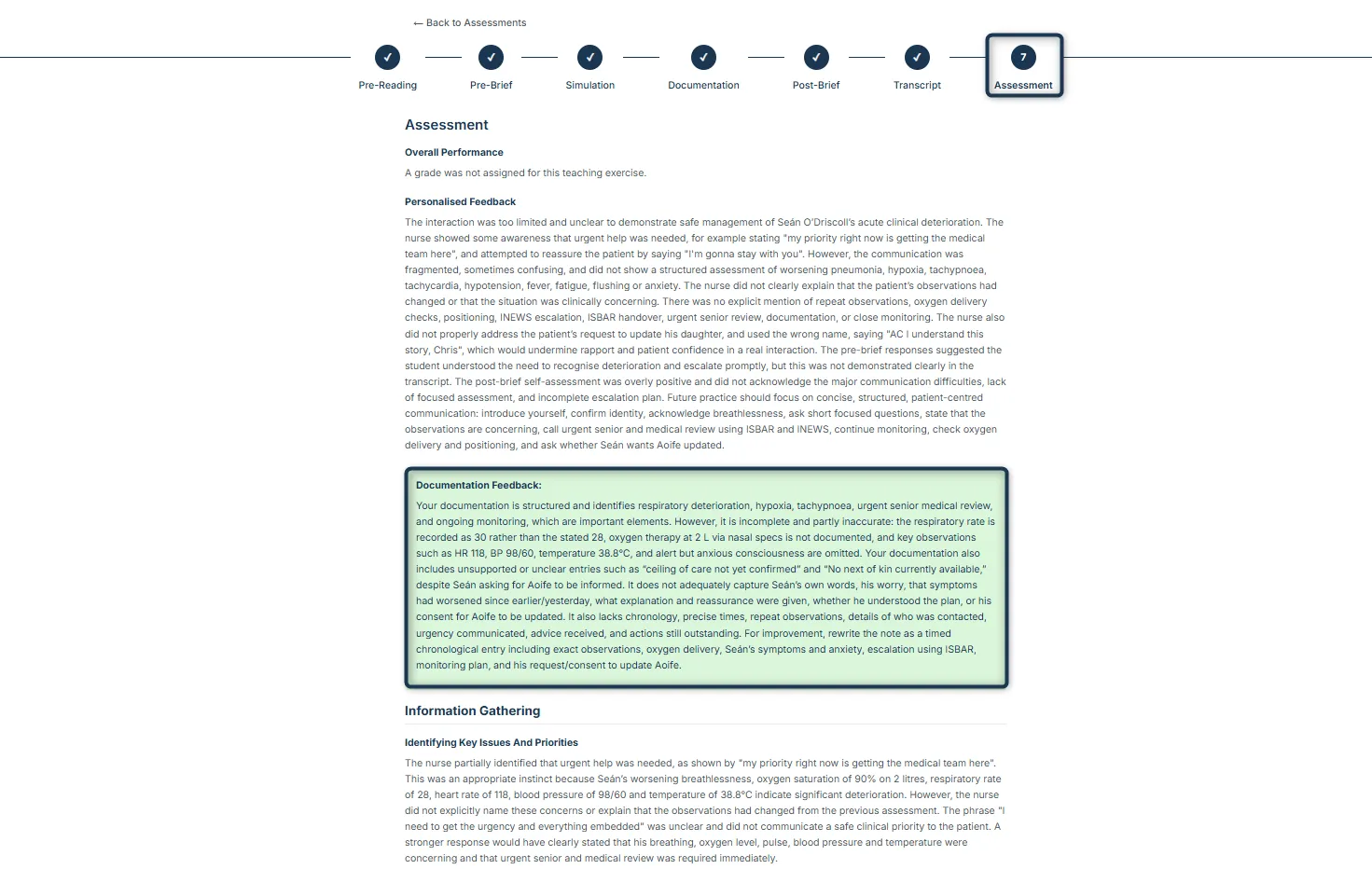
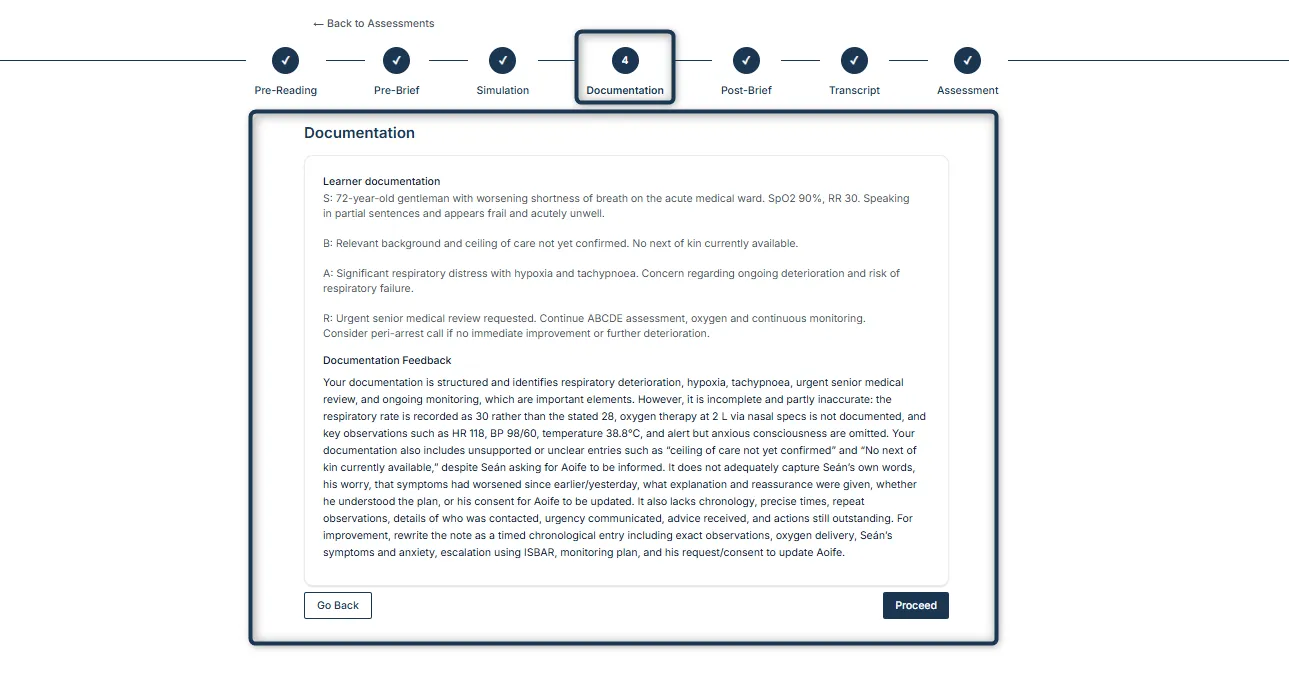
Some simulations include an additional Documentation stage. When you view a completed assessment, you can review the documentation you submitted and the feedback provided on it.
Note: The Documentation stage only appears in simulations that include a Documentation Task. The task and required format can vary between simulations.
When a Documentation Task is included, the simulation has 7 key stages:
Pre-Reading → Pre-Brief → Simulation → Documentation → Post-Brief → Transcript → Assessment
Documentation
The Documentation stage shows the documentation you submitted during the simulation, along with Documentation Feedback that highlights what you did well and where you can improve.
Assessment
The Assessment stage shows your overall performance and personalised feedback, including Documentation Feedback when the simulation includes a Documentation Task. This helps you understand how you performed during the interaction and how effectively you documented it.