Simulation Overview
SimFlow provides AI-powered simulations that allow you to practise realistic conversations with simulated patients or characters in a safe, structured environment. Each simulation guides you through a series of stages, from preparing for the scenario and completing the simulated conversation to reflecting on your performance and reviewing their assessment.
This guide provides an overview of the simulation workflow and explains what to expect at each stage. Use the links provided to access detailed guidance for completing each step.
Let’s get started 🚀
Simulation Workflow
A typical simulation follows this workflow:
Choose a Simulation → Pre-Reading → Pre-Brief → Simulation → Documentation Task (if included) → Post-Brief → Transcript → Assessment → Finish Simulation
Note: Not every simulation includes every stage. The workflow and available activities depend on how the simulation has been configured.
Choose a Simulation
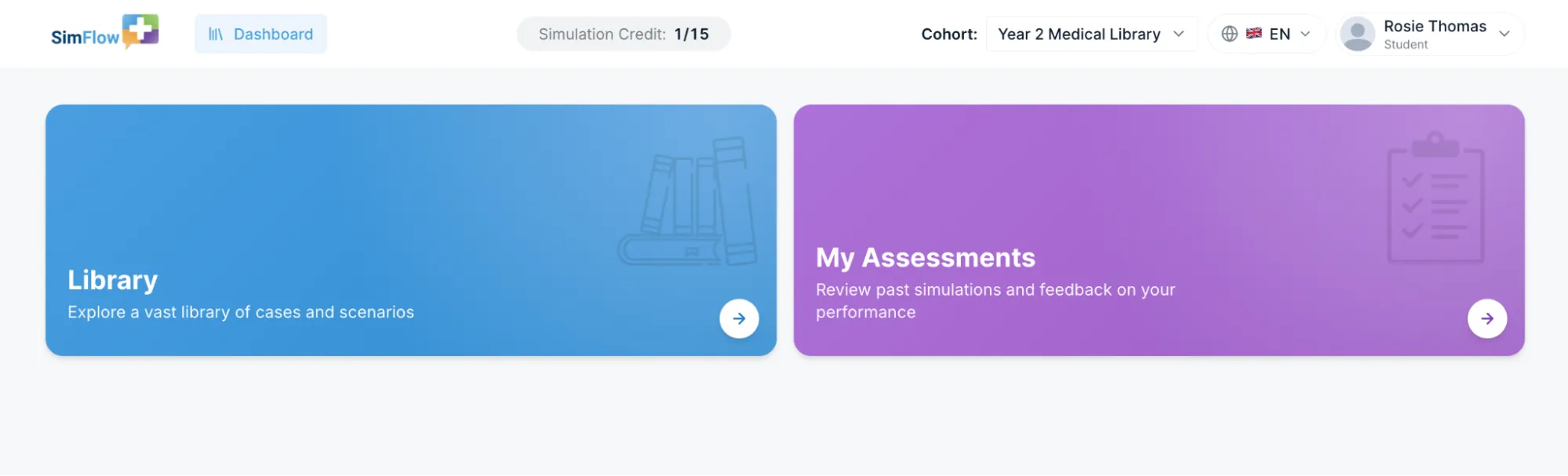
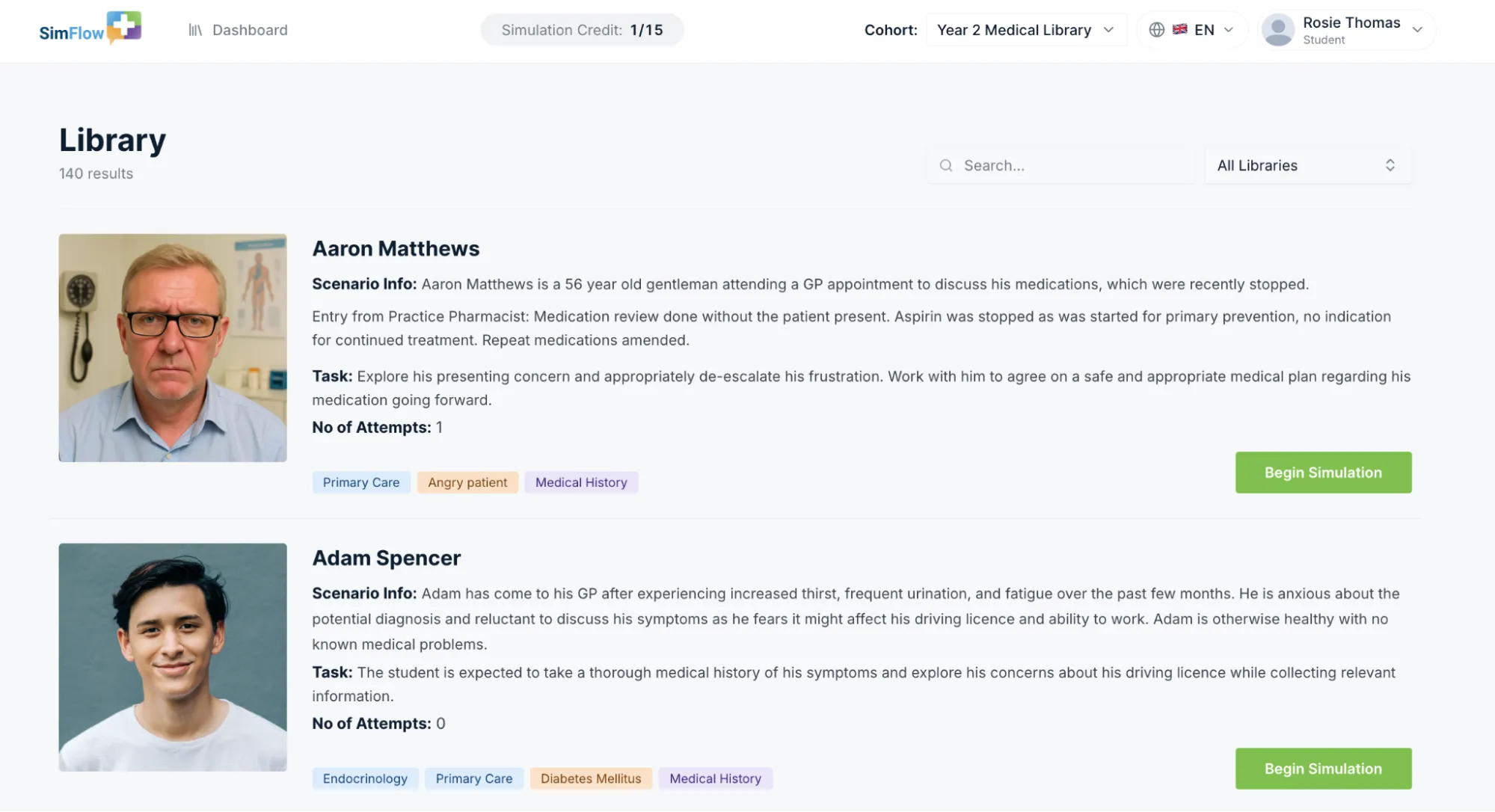
Simulations are available through the Library on your Dashboard. The Library contains the scenarios available based on your cohort, or assigned learning activities.
You can browse and filter available scenarios by options such as subspecialty, condition, or task to find the scenario you want to practise.
Pre-Reading and Pre Brief
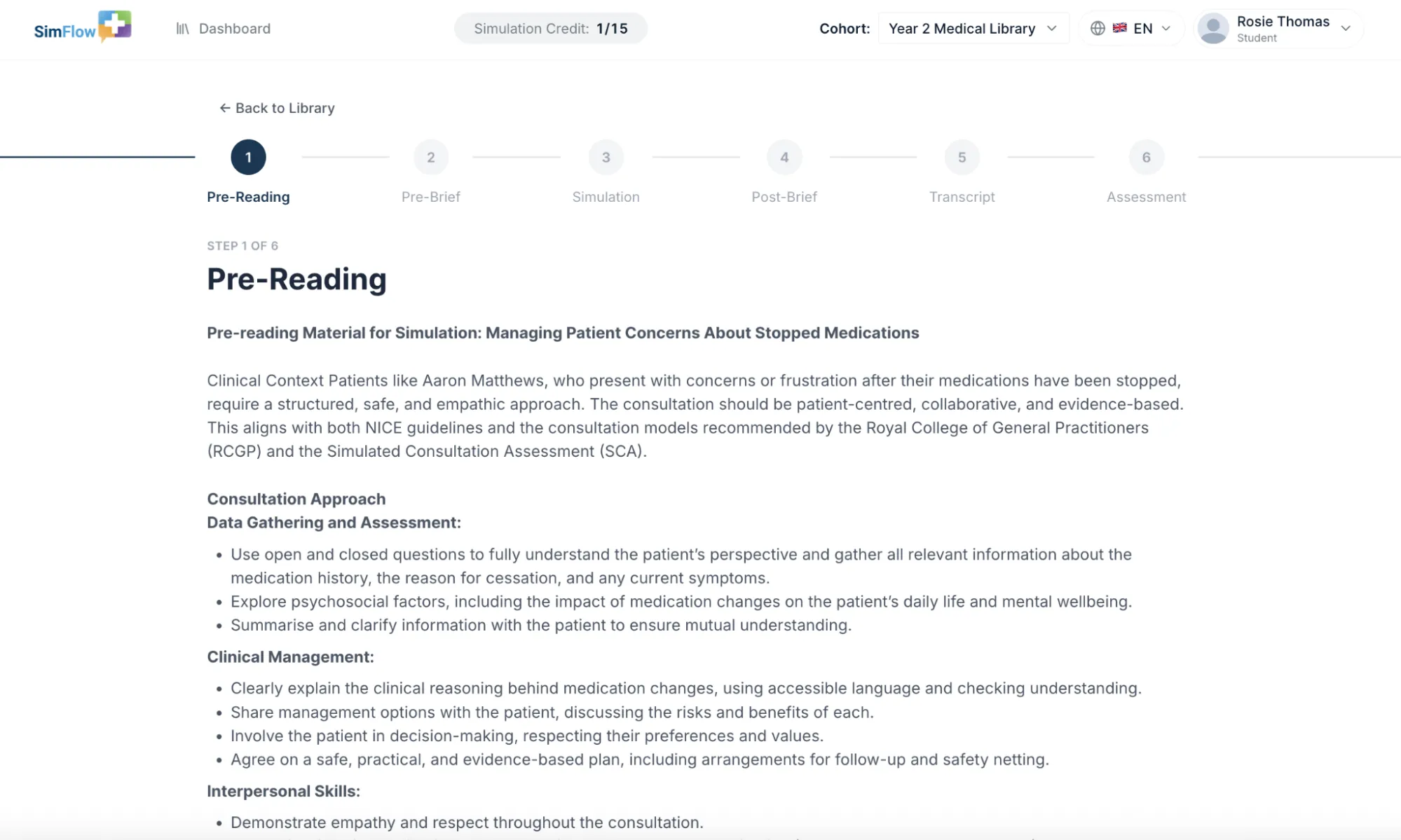
Some simulations include scenario-specific Pre-Reading to help you prepare before the simulated conversation. Review the available clinical background, guidance, supporting materials, and videos before continuing.
Tip: Use the Pre-Reading to understand the scenario, task, and key learning points before starting the simulation.
Some simulations include optional Pre-Brief questions before the simulation. These questions encourage you to reflect on your knowledge, confidence, and areas you would like to develop before beginning the conversation.
Info: Pre-Brief questions are optional where enabled. If you choose to answer them, their responses can contribute to the feedback included in the Assessment Report.
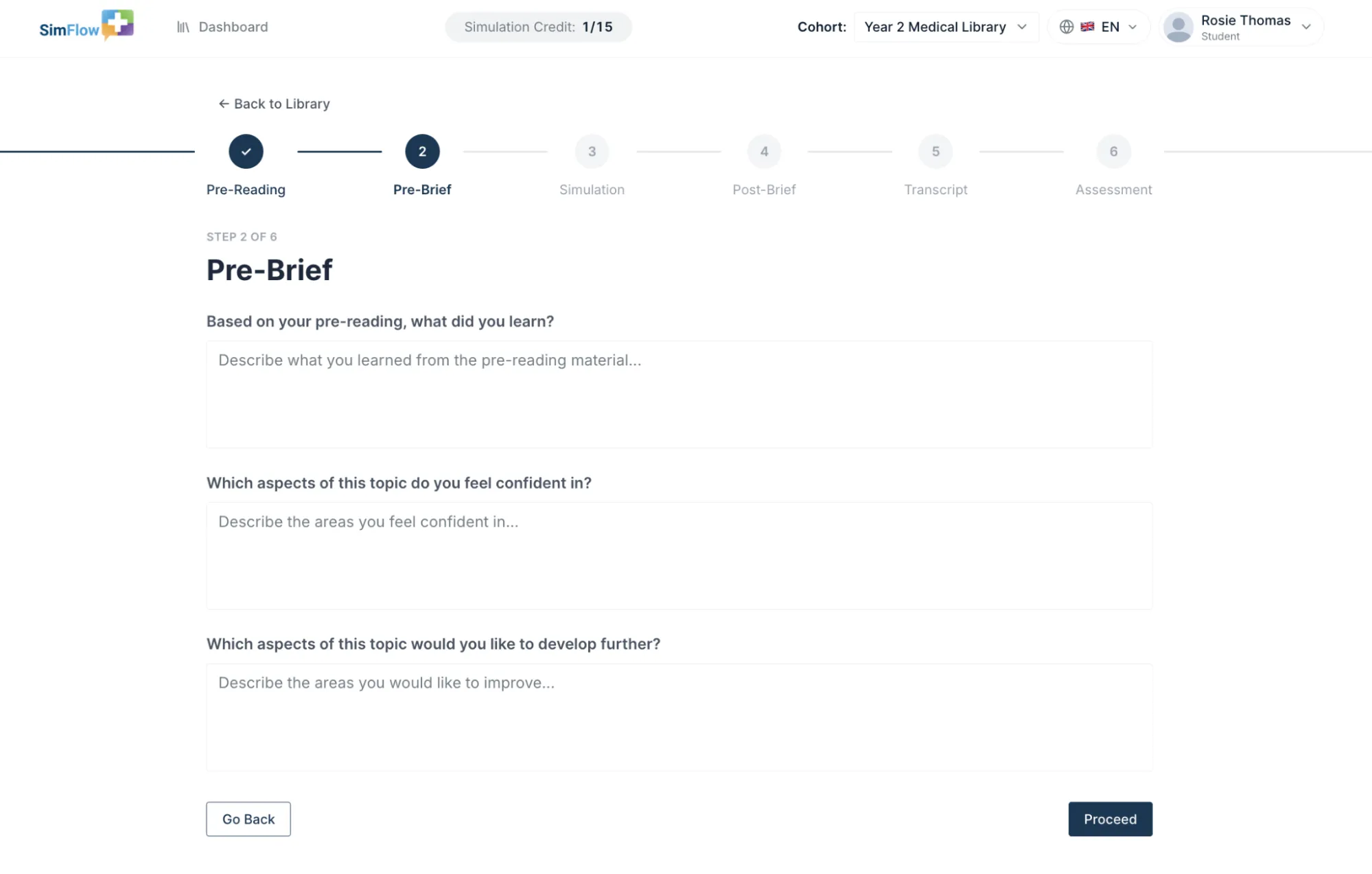
For more information on how to complete the pre-reading and pre-brief questions, refer to Start a SimulationStart a Simulation.
Review the Scenario and Task
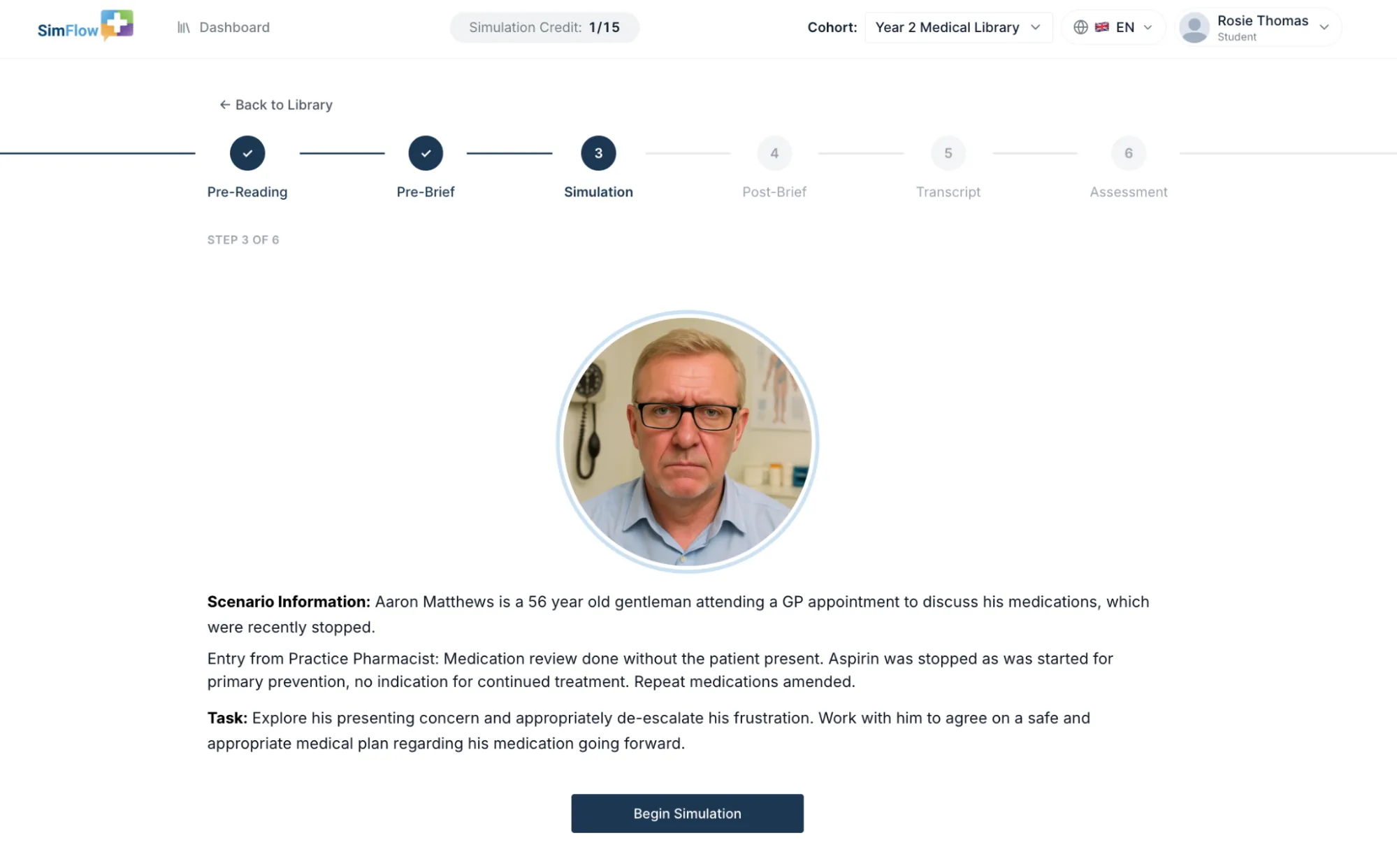
Before starting the conversation, you need to review the Scenario Info and Task presented for the simulation.
The scenario provides the context for the interaction, while the task explains what you are expected to achieve during the conversation.
Choose a Simulation Mode
After reviewing the scenario, you need to select one of the three available Simulation Modes. Each mode provides a different way to interact with the AI character.
Simulation Mode | Description |
|---|---|
RealTime | Engage in a fluent, real-time conversation with no delays. Interrupt and respond naturally, simulating the dynamics of a live interaction. |
SimCall | Experience the scenario as a real phone call. Call the SimFlow number and enter the unique access code shown on screen at the beginning of the call. |
SimVoice | Hold the space bar to speak and experience a turn-based simulation where you take turns with the AI. Perfect for focused, step-by-step practice with time to think between responses. |
For detailed information on simulation modes, please refer to Simulation ModesSimulation Modes.
Perform the Simulation
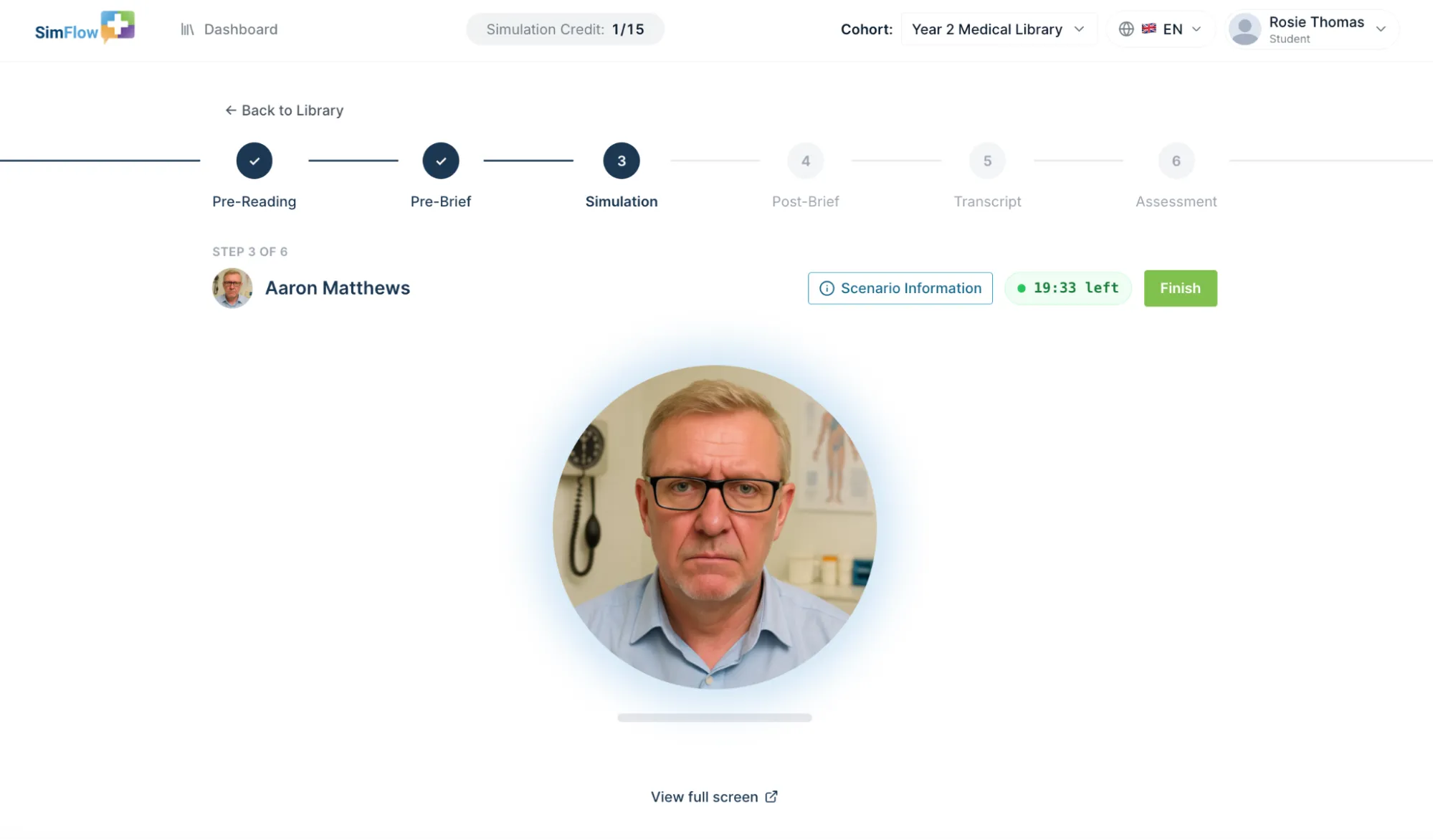
Once the selected simulation mode starts, you can start interacting with the AI character according to the scenario task.
The simulation allows you to practise realistic communication and respond to the AI character as the conversation develops.
Documentation Task
Some simulation workflows include a Documentation Task after the simulated conversation.
When included, you will be asked to document the interaction according to the instructions provided. For example, a simulation may ask you to document the interaction and clinical escalation using the SBAR format, as you would in medical notes.
Note: The Documentation Task only appears in simulations where it has been included in the workflow.
For more information on how to complete the documentation task, please refer to Complete the Documentation TaskComplete the Documentation Task.
Complete the Post-Brief and Review the Transcript
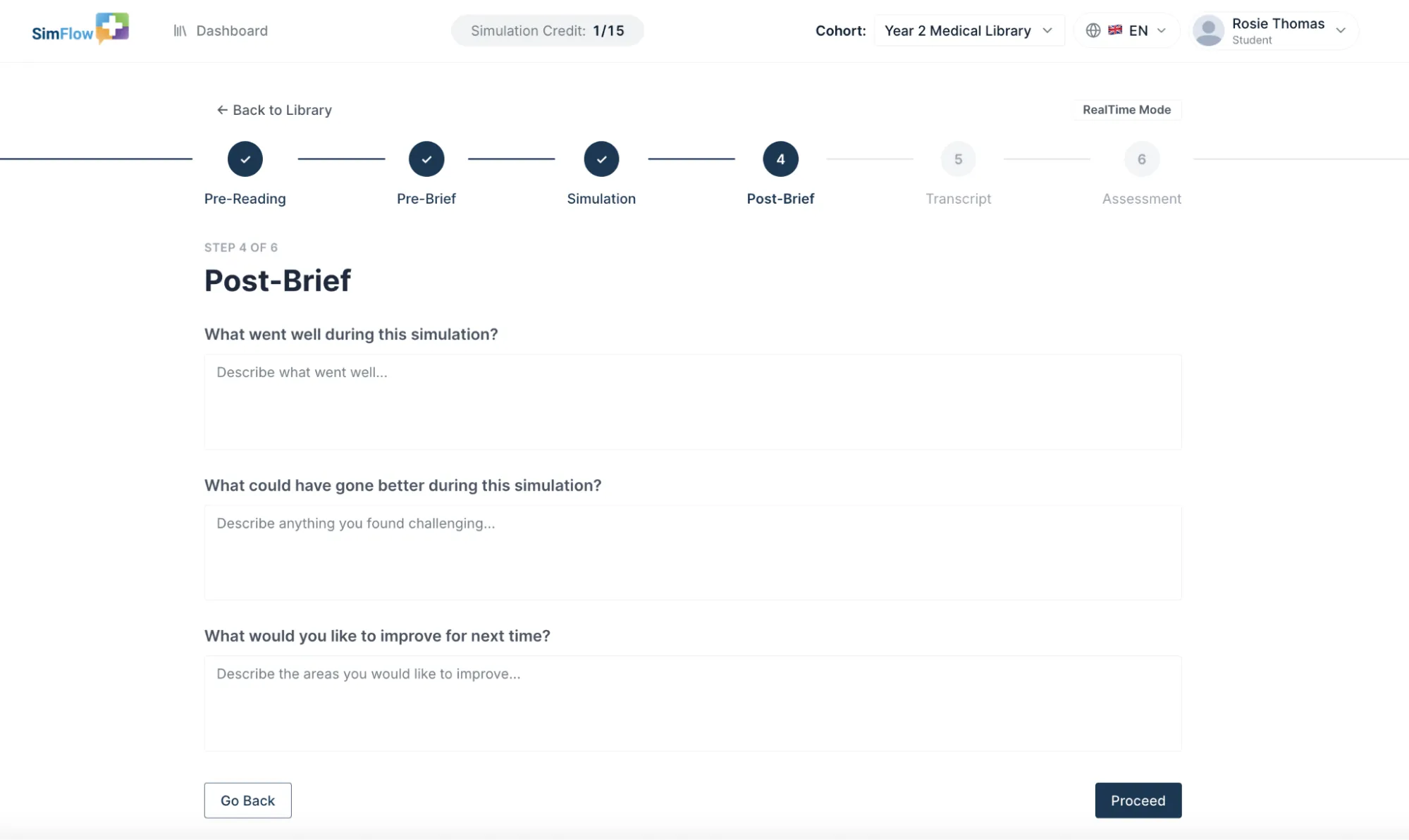
After completing the Simulation and any applicable Documentation Task, you may be asked to complete a Post-Brief to reflect on your performance, including what went well, what could have gone better, and what you would like to improve.
Info: If you choose to answer the Post-Brief questions, their responses are considered in the Assessment Report as reflective comments and feedback.
You can then review the Transcript of your conversation. Depending on the simulation, audio playback may also be available so that you can revisit the conversation.
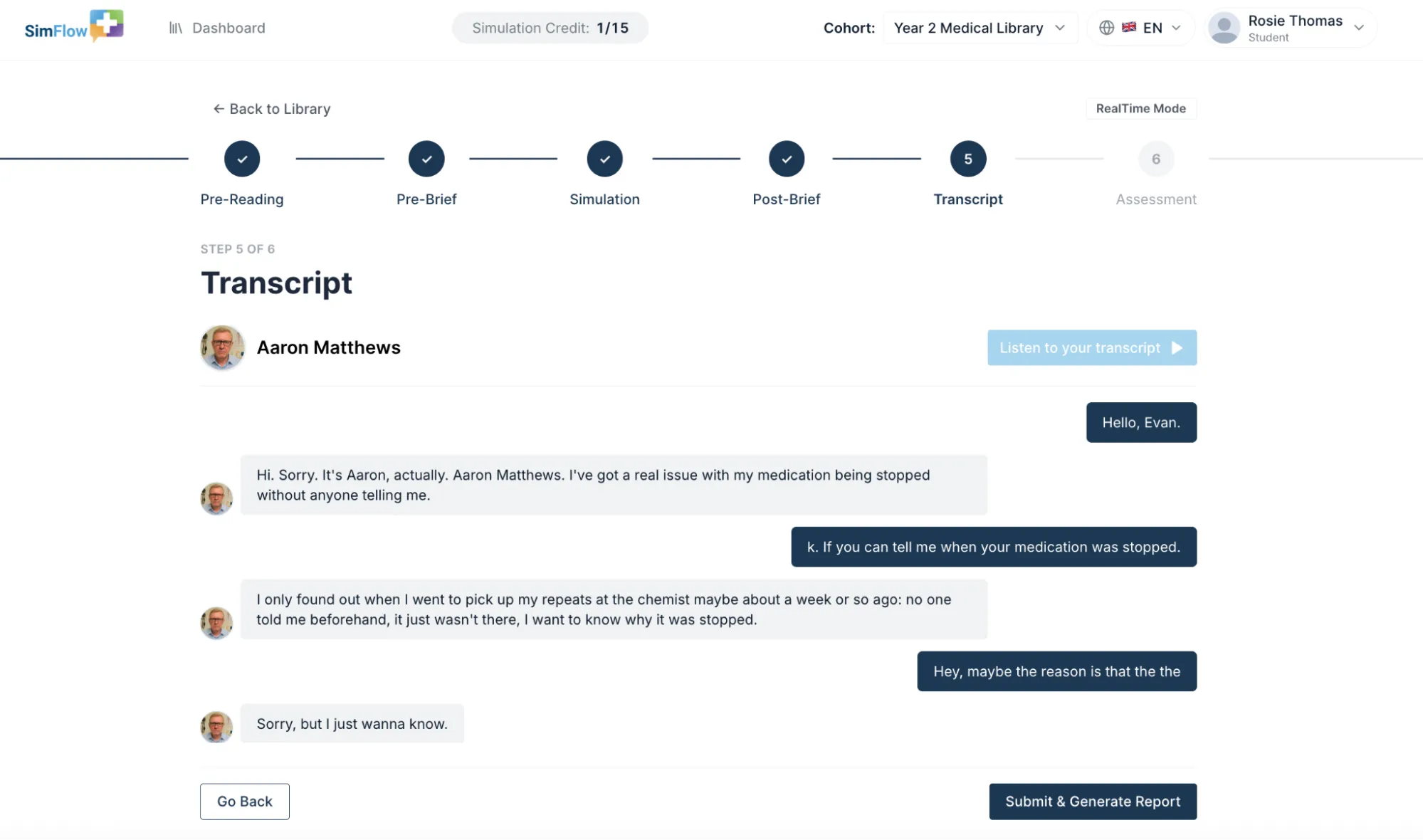
For more information on completing the post-brief questions and reviewing the transcript, refer to Complete the Post-Brief and Review TranscriptComplete the Post-Brief and Review Transcript.
Review the Assessment Report
The final stage is the Assessment. After submitting the simulation, an Assessment Report is generated automatically.
Depending on the simulation and programme configuration, the report may include Quantitative Grade, Qualitative Feedback, Assessment Subdomains, Emotional Sentiment Analysis, and Documentation Feedback.
Info: The report provides personalised feedback based on your performance during the simulation and can highlight specific strengths and areas for improvement.
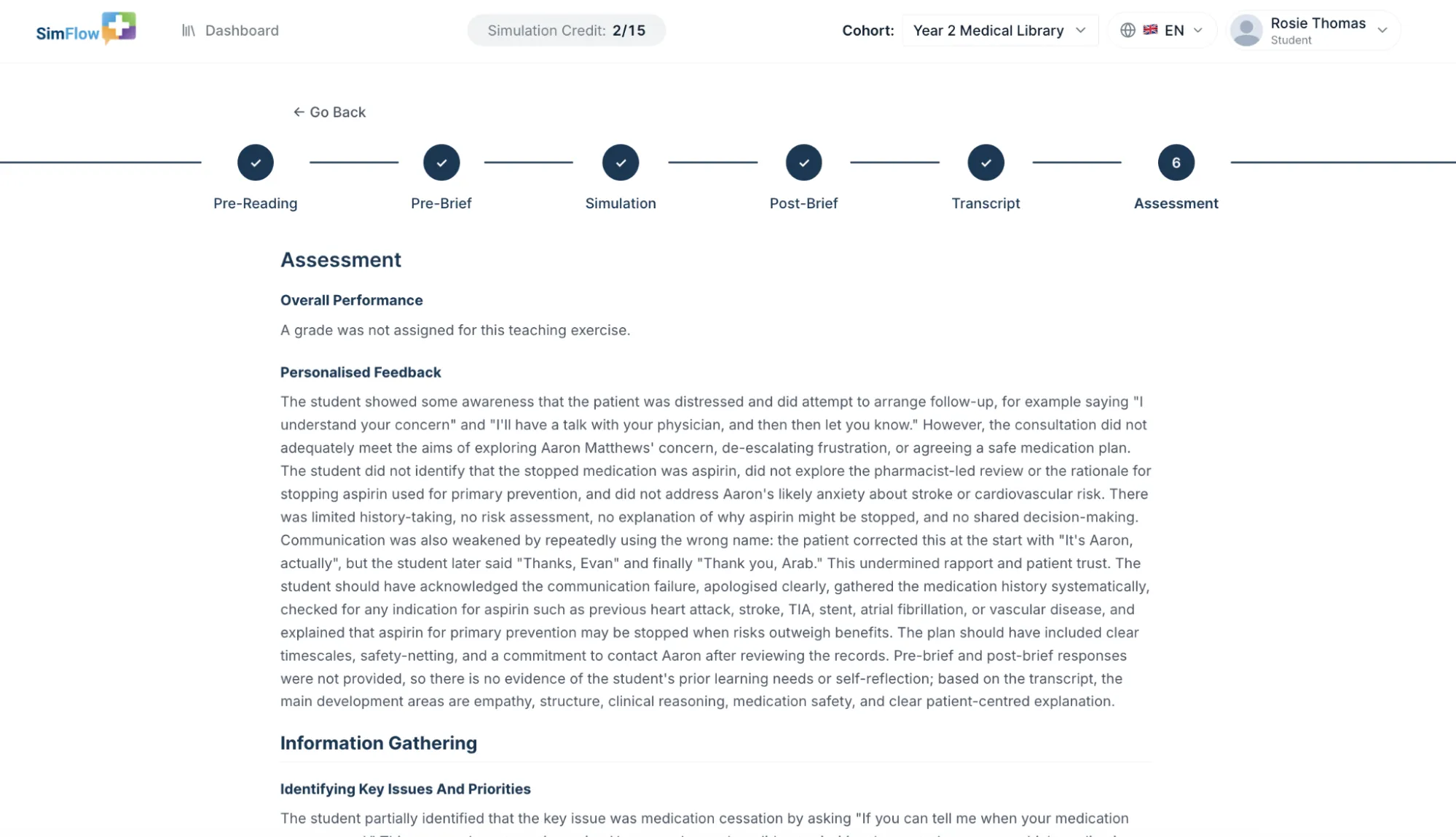
For more information on assessment reports, please refer to the Review Assessment ReportReview Assessment Report.
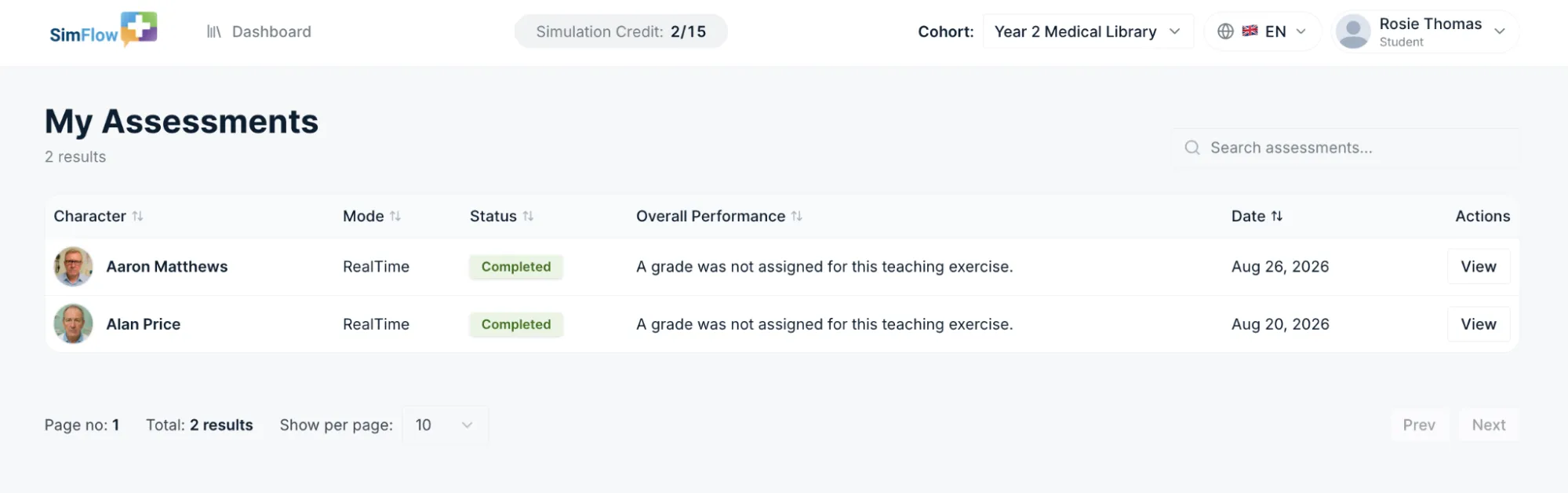
After completing the simulation, you will be navigated to the My Assessments section, where your completed simulation appears in assessment history.