Add Additional Information
Once you've configured your simulation's Scenarioconfigured your simulation's Scenario, the next step is to add Additional Information, supporting resources to give learners useful context before or during the simulation. You can use resources from the SimFlow Library or upload your own images, audio, video, PDFs, and embeds.
Let’s get started 🚀
Add and Configure Resources
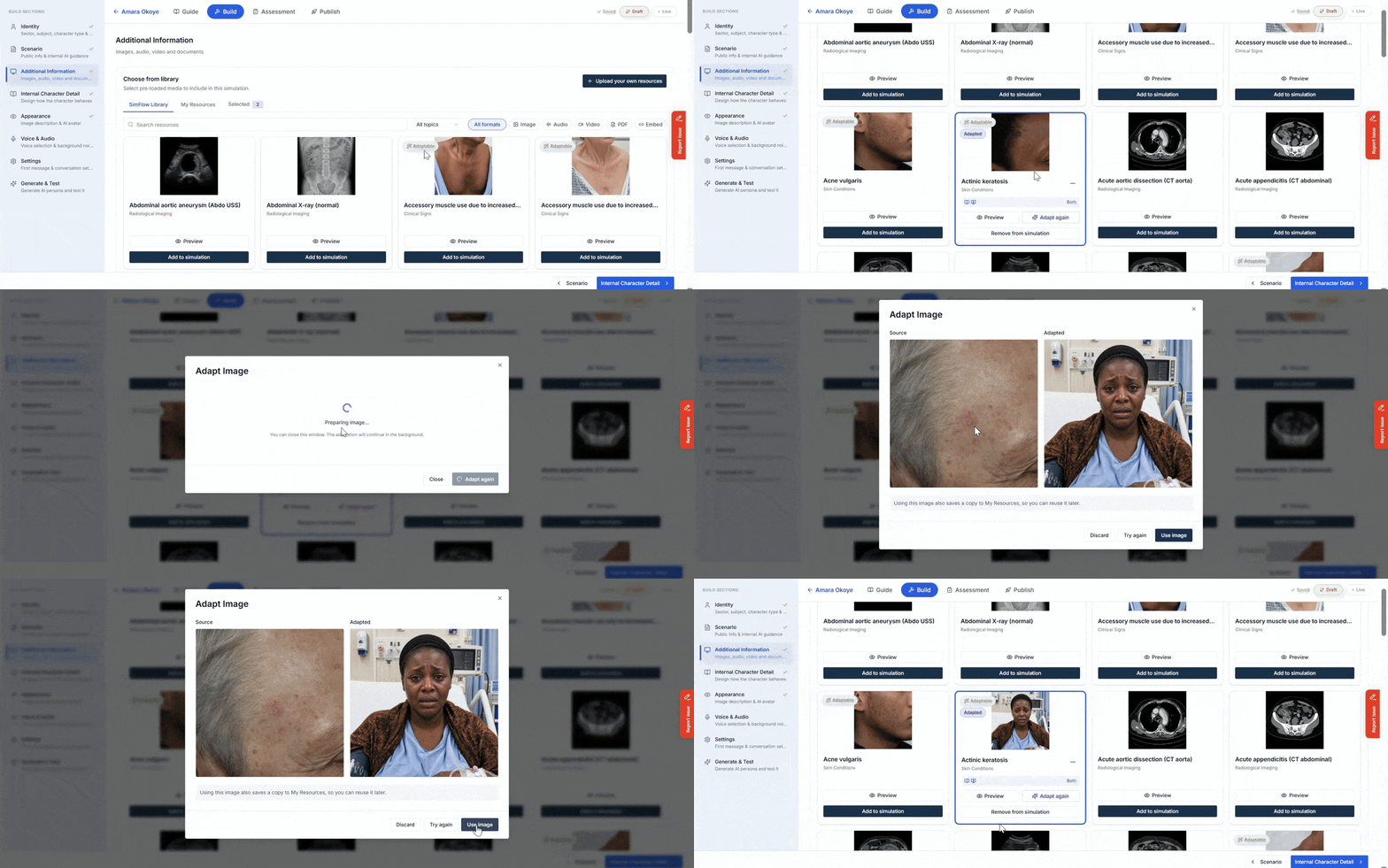
Browse the SimFlow Library, preview a resource before adding it, and choose whether learners access it before the simulation, during the simulation, or both. You can also adapt supported images to better match your simulation's character.
Use the interactive walkthrough below to learn how to Add and Configure Resources.
Add Your Own Resources
If you don't find what you need in the SimFlow Library, you can upload your own resources instead. Add your own images, audio, video, PDFs, or embed content from supported platforms, and use them in your simulation the same way as any library resource.
Use the interactive walkthrough below to learn how to Add Your Own Resources.
Info: Some images are marked Adaptable. Click Adapt image to automatically adjust the image's age, nationality, or gender to better match your character. You'll see the original and adapted versions side by side - choose Use image, Try again, or Discard. Using an adapted image also saves a copy to My Resources, so you can reuse it later.
Next Steps
After completing the Additional Information section, continue to Configure Internal Character DetailsConfigure Internal Character Details to define information that guides the character’s behaviour during the simulation.