Configure Simulation Scenario
Once you have configured the simulation identitysimulation identity, you can continue to the Scenario section. This is where you provide the context for the simulation, define what the user is expected to accomplish, and optionally specify any documentation task they need to complete.
The Scenario section contains user-facing information that learners see before and during the simulation, along with fields that help define the expected outcome of the exercise.
Note: The Scenario section becomes available after you have configured the simulation identity.
Let’s get started 🚀
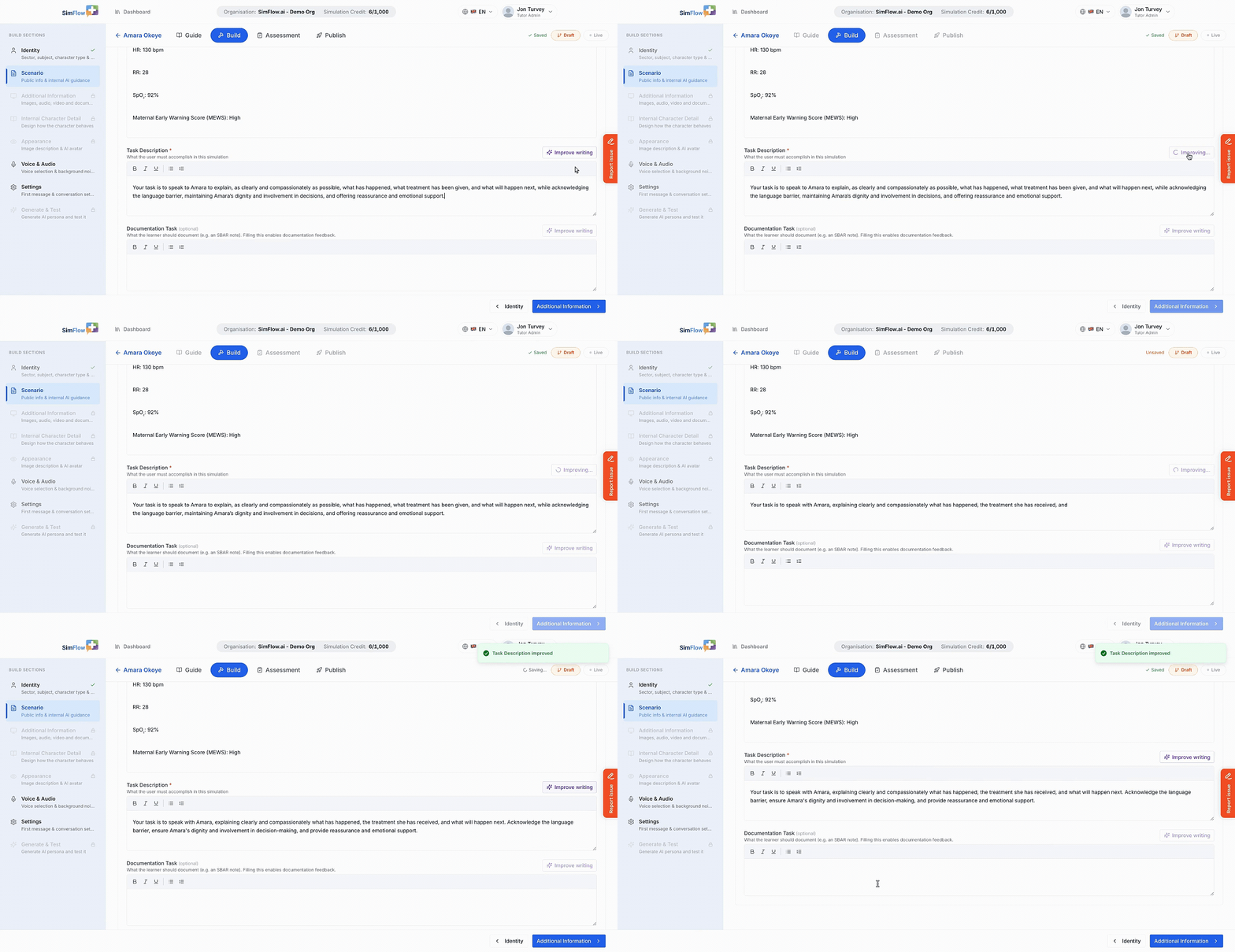
Use the below walkthrough to configure the scenario for your simulation, including the scenario information, task description, and optional documentation task.
Info: Each applicable text field has its own Improve writing button, so you can refine individual sections as needed. Review the suggested wording before continuing to make sure it accurately represents the scenario you want learners to experience.
Next steps
After completing the Scenario section, continue to Additional InformationAdditional Information to add supporting media and documents.